Step 1: Open Email Accounts
Open Instantly.
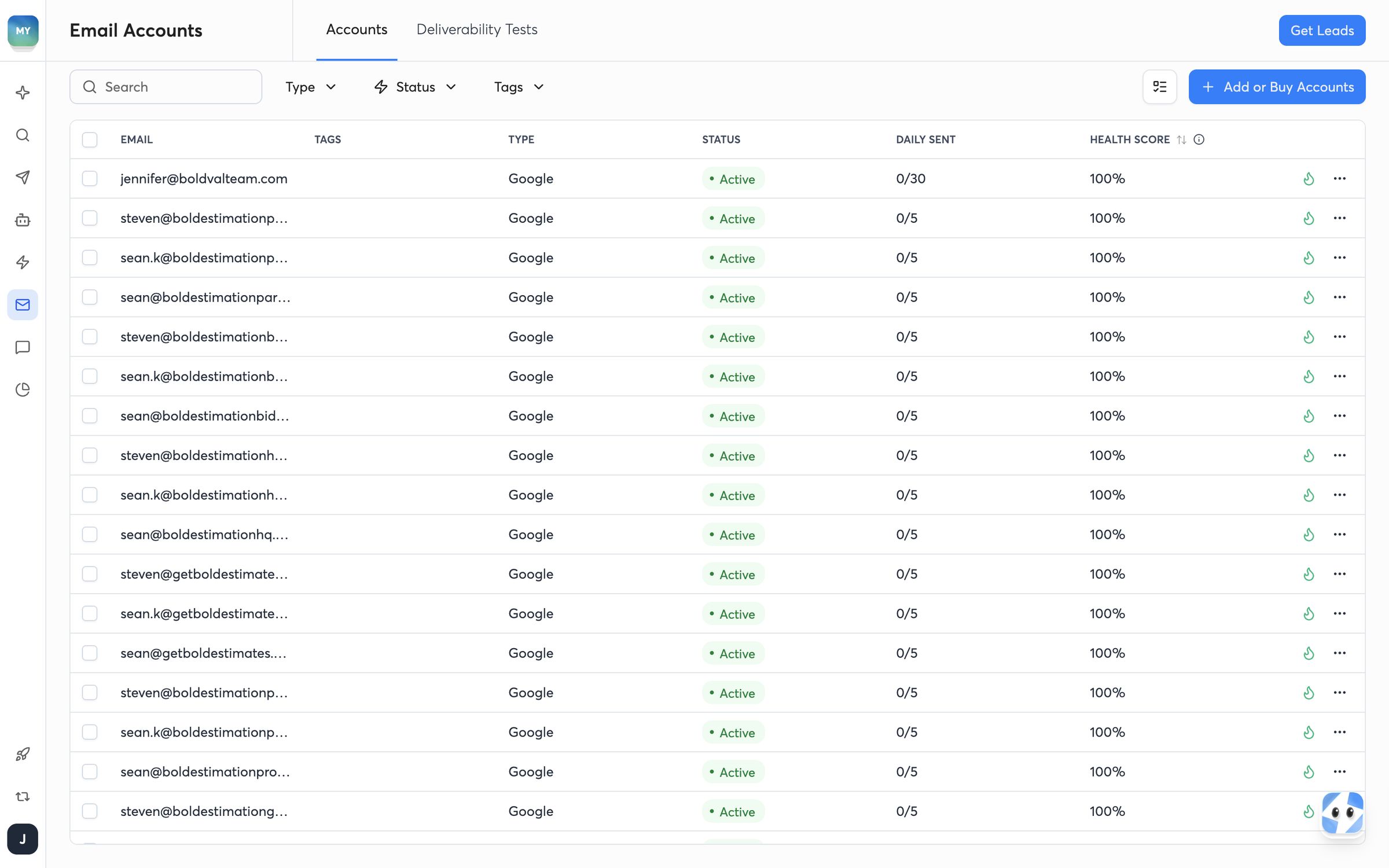
Each weekday before seven in the morning, Central time, open Email Accounts. Every mailbox should say Active, with a health score of 95 percent or more.
 Full size

No guides found
Guide 5 of 13 · Instantly
Updated Sep 30, 2026
Two minutes every weekday before sending starts at 7 AM Central. You confirm every mailbox is connected, healthy and set to this week's daily limit, and you take the ones that are not out of their campaigns.
The narrated video of this guide is in the library: https://campus.boldestimations.com/video/instantly-daily-health-check.mp4
Screens recorded Sep 30, 2026 in Bold Estimation's Zapmail, Instantly and Google accounts. Names, email addresses and phone numbers of real people are replaced with placeholders or blurred, and typed examples are made up. If a screen looks a little different, the tool has updated: find the same label nearby.
Open Instantly.
Each weekday before seven in the morning, Central time, open Email Accounts. Every mailbox should say Active, with a health score of 95 percent or more.
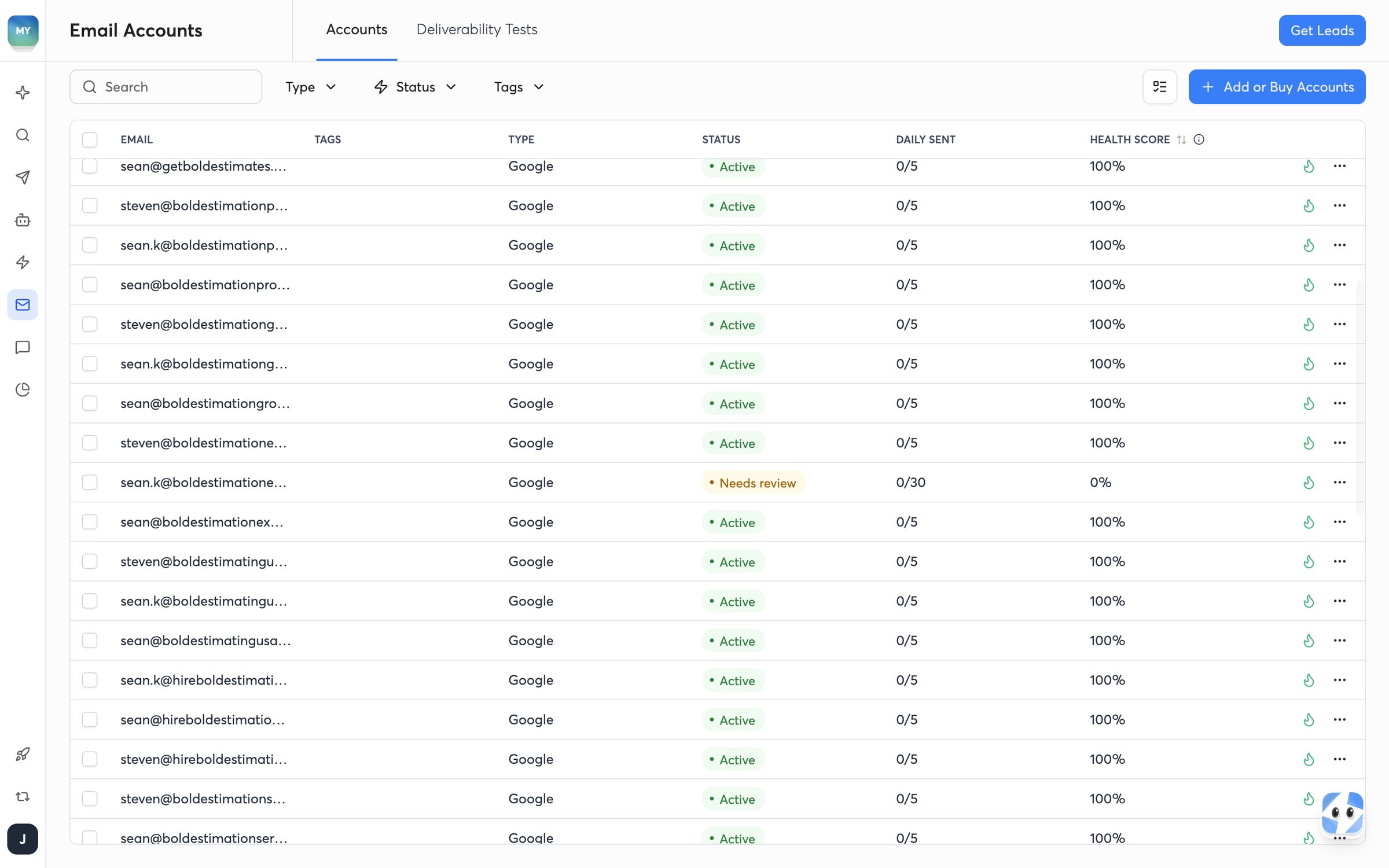
Full sizeLook down the list for anything that is not green. Here one mailbox says Needs review, with a health score of zero.
 Full size
Watch out. A mailbox under 95 percent, or with any status other than Active, comes out of its campaigns today. Its Campaigns tab shows which ones; in each, open Settings, then Accounts To Use, and remove it. Keep warmup on, and put it back after a full week at 100 percent.
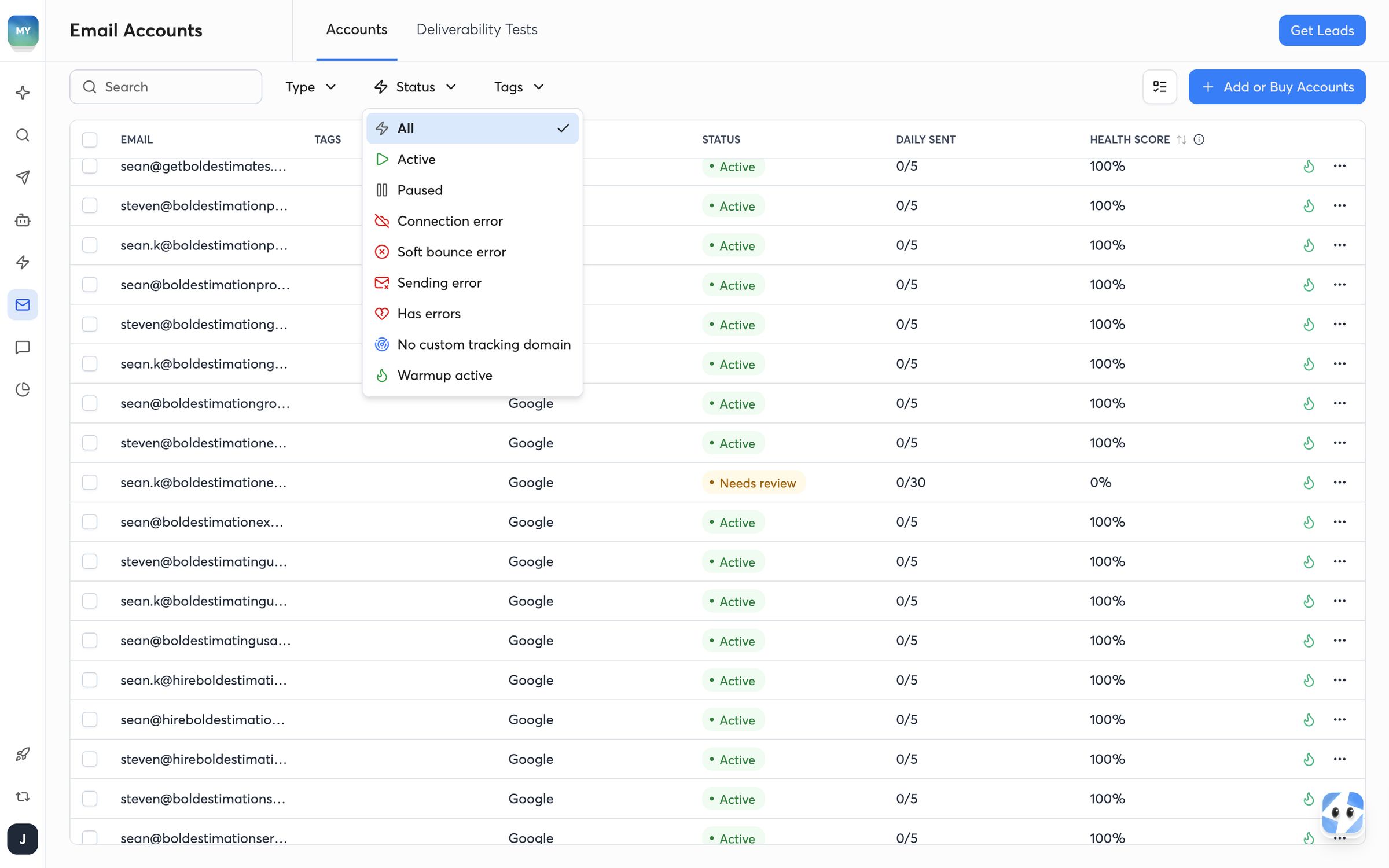
The Status filter shows only mailboxes with problems. Has errors, Connection error and Warmup has errors are the ones to check.
 Full size
Press Escape to shut the menu.
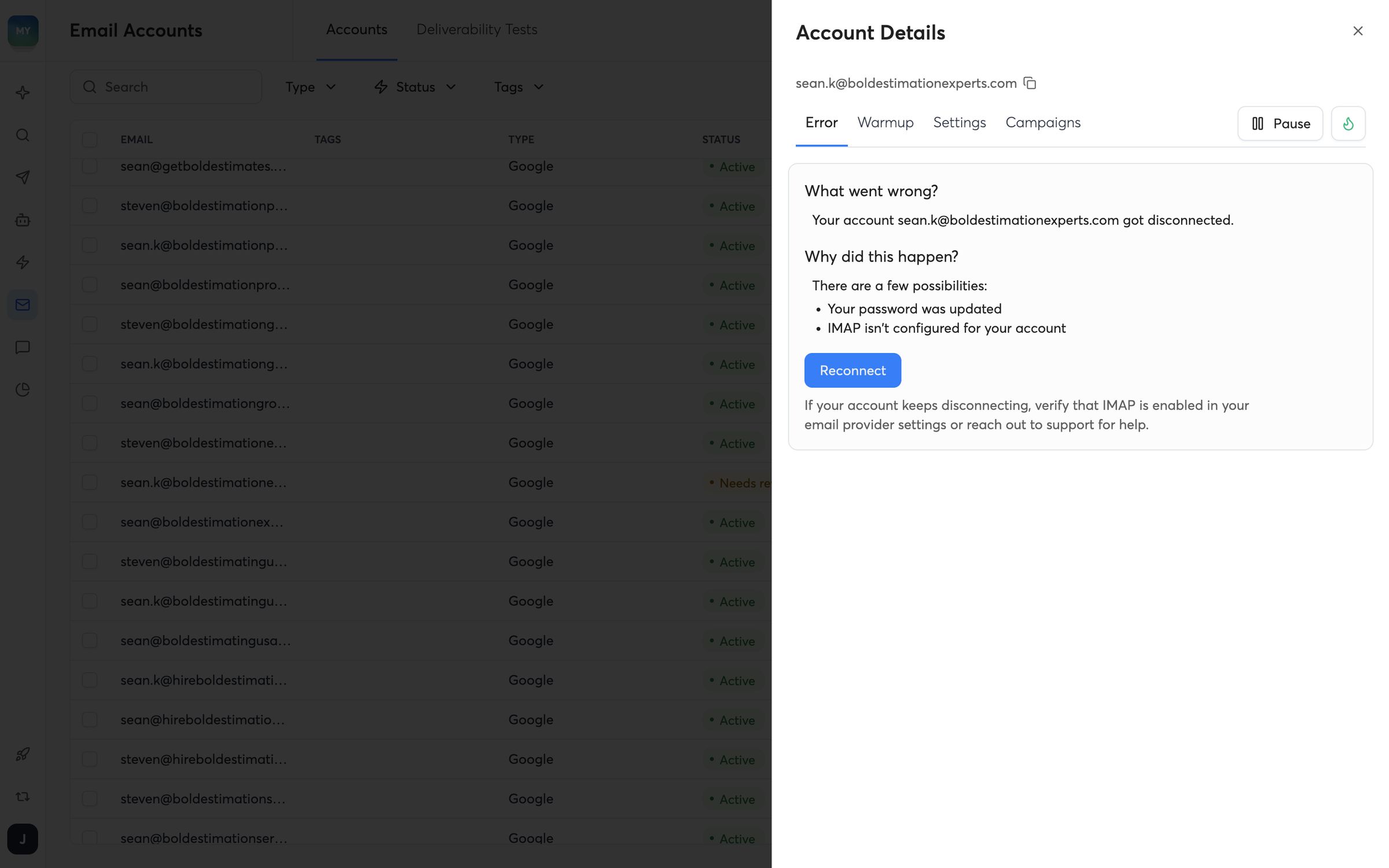
Click the mailbox. Its Error tab says what went wrong. This one got disconnected.
 Full size
Watch out. A disconnected mailbox sends nothing and gets no warmup. Press Reconnect and sign in to that mailbox again with its login from Zapmail. If it keeps disconnecting, ask Zapmail support to check that IMAP is turned on for it.
Press Escape, then open a healthy mailbox.
Open its Settings tab.
Scroll down to Campaign Settings.
Daily campaign limit is how many campaign emails this mailbox sends per day. Start new mailboxes at five. Each week, add three, up to twenty, and only while bounces stay under two percent.
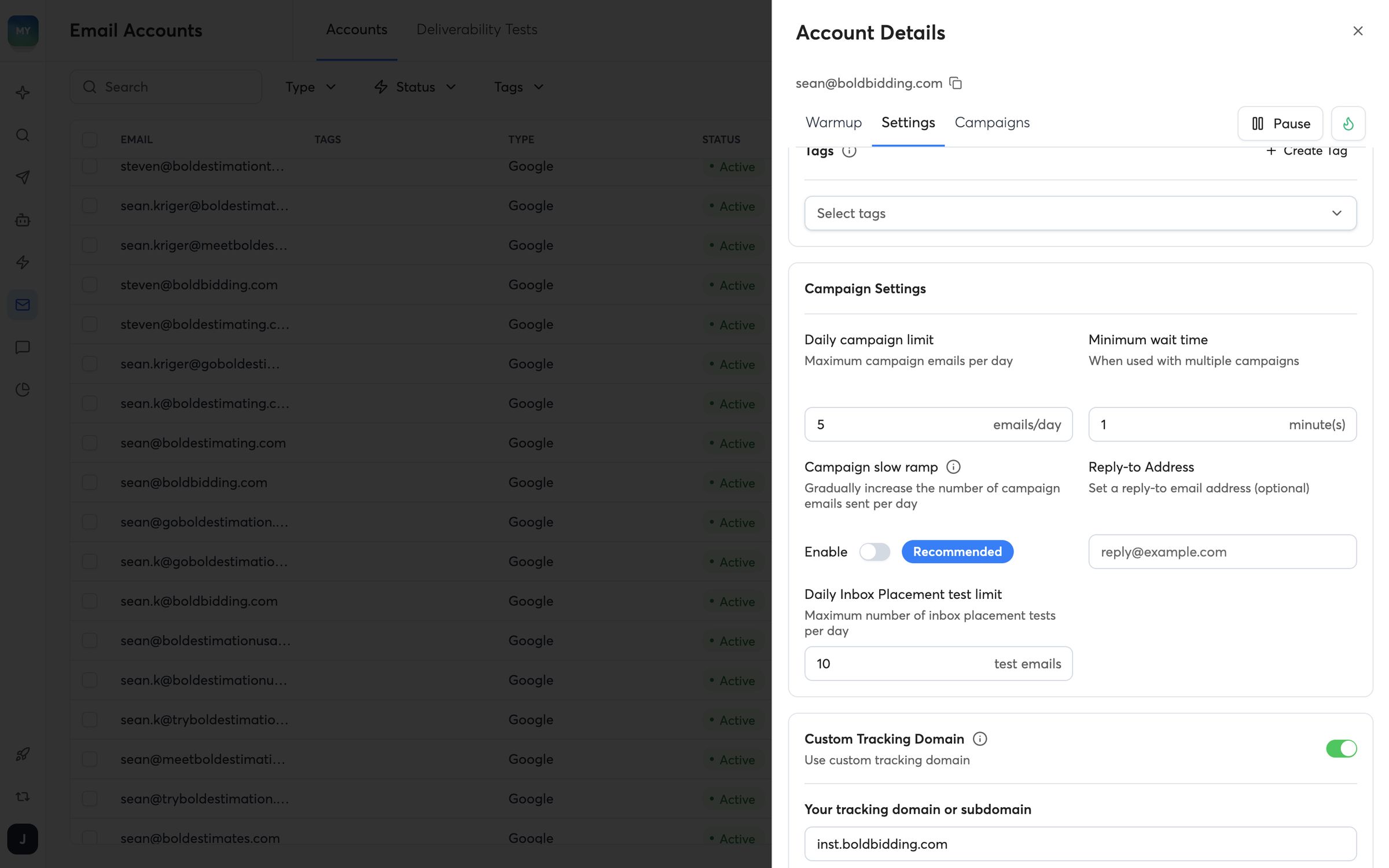 Full size
Watch out. If bounces pass 2 percent, set every mailbox back to last week's number and check the list before you raise the limits again.
Further down, Warmup Settings holds the warmup profile. Leave it as it is: up to twenty warmup emails a day, with a thirty percent reply rate.
Press Escape. Repeat for any mailbox that looked off, and note what you changed.
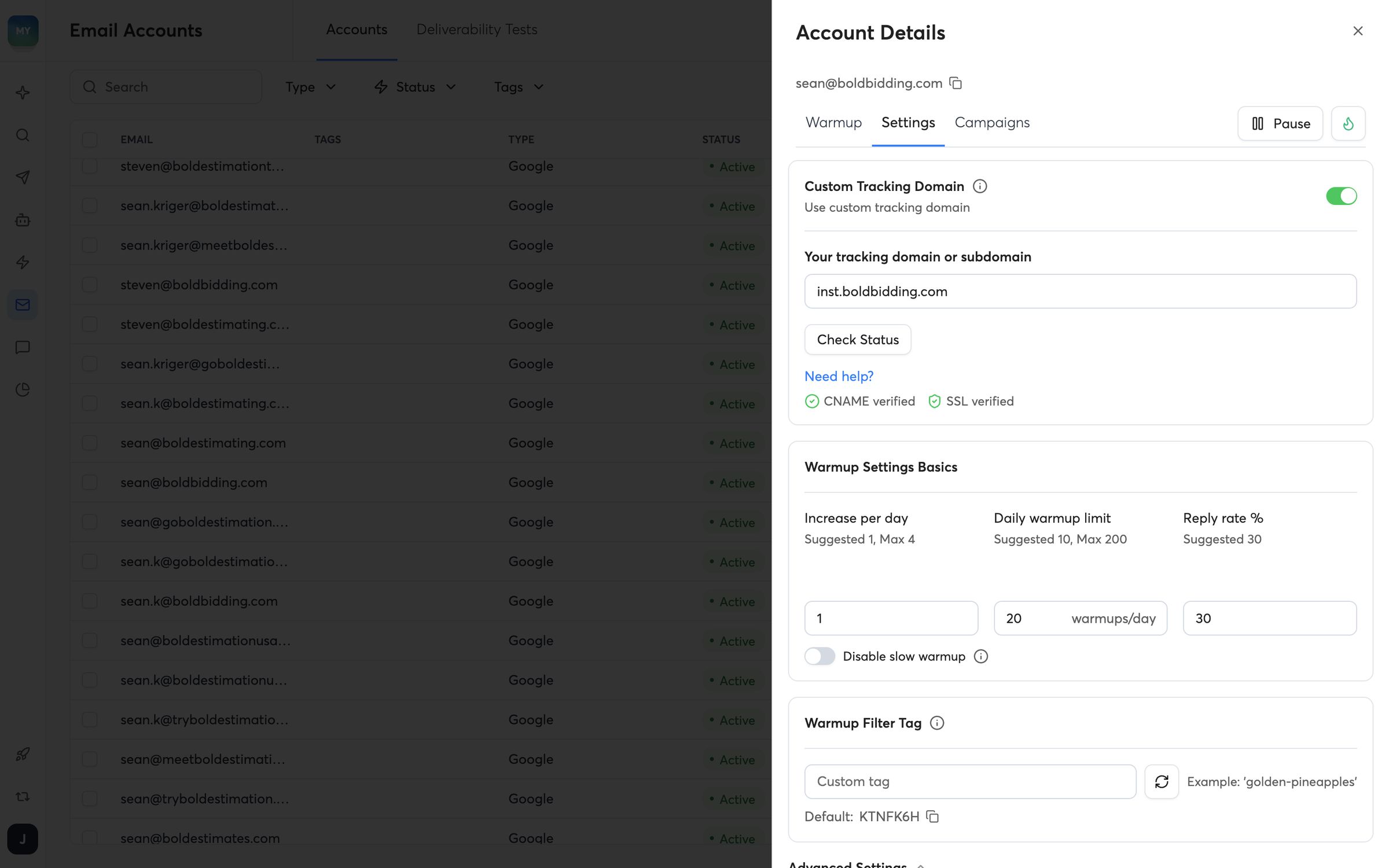 Full size
Not started