Step 1: Open the campaign
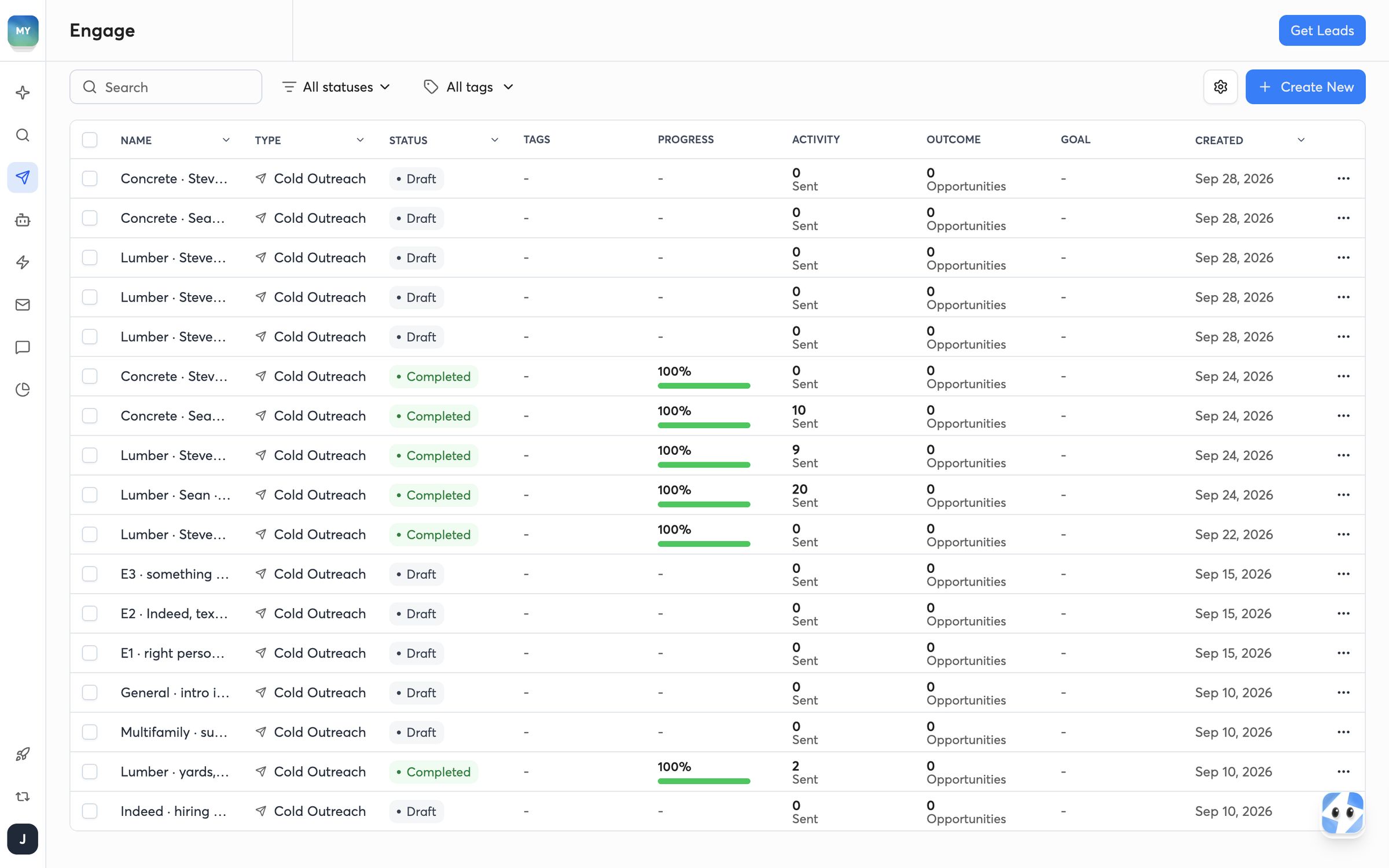
Open Engage in Instantly.
Click the campaign the list is for. A new campaign says Draft.
 Full size

No guides found
Guide 7 of 13 · Cold email process · Instantly
Updated Sep 30, 2026
A lead is one person a campaign will email. The team adds people to the list drop sheet (guide 11); whoever loads campaigns brings the list into Instantly from the campaign's Leads tab. This guide walks up to the upload screen and stops there, so no real list is uploaded.
The narrated video of this guide is in the library: https://campus.boldestimations.com/video/process-add-leads.mp4
Screens recorded Sep 30, 2026 in Bold Estimation's Zapmail, Instantly and Google accounts. Names, email addresses and phone numbers of real people are replaced with placeholders or blurred, and typed examples are made up. If a screen looks a little different, the tool has updated: find the same label nearby.
Open Engage in Instantly.
Click the campaign the list is for. A new campaign says Draft.
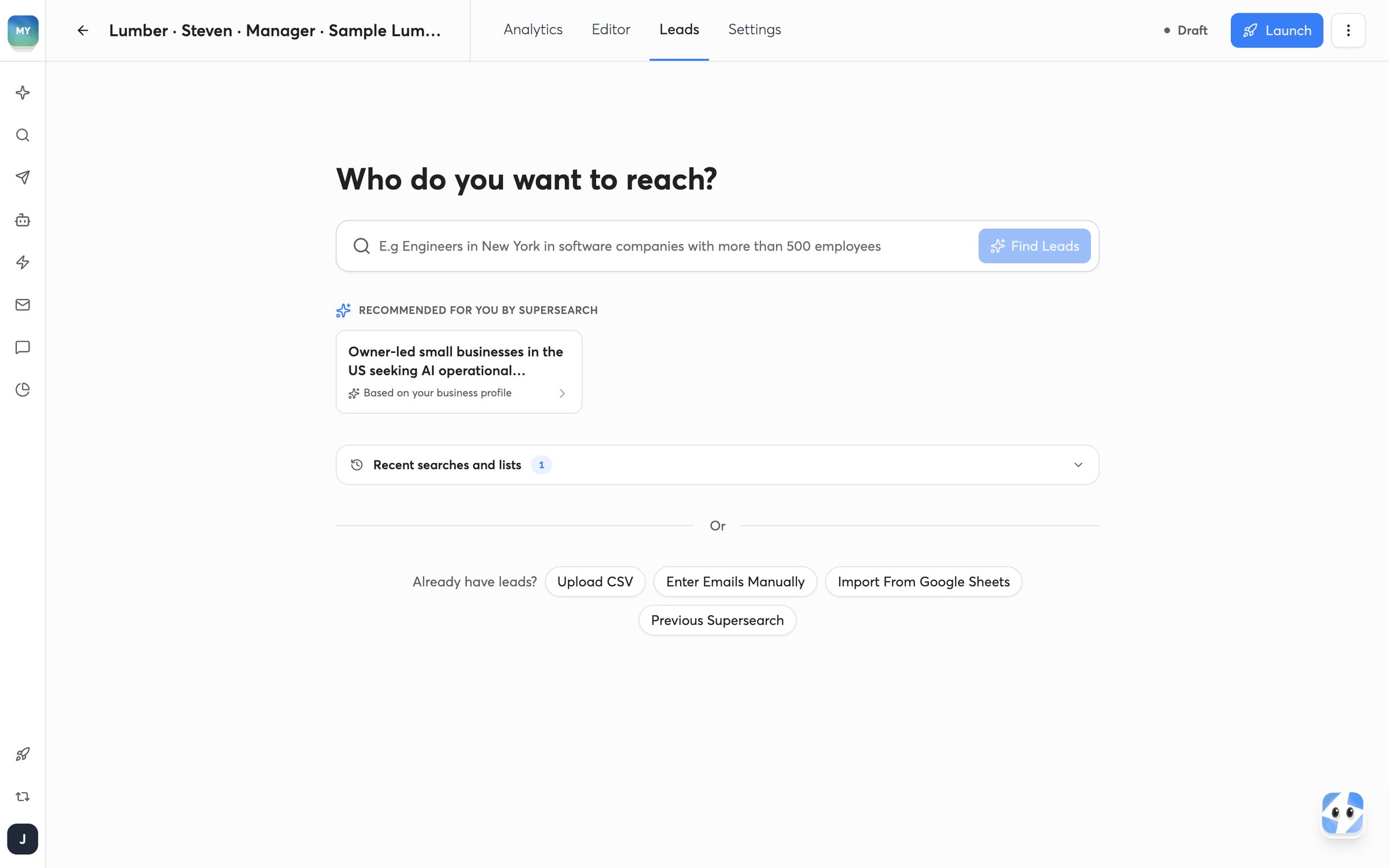
Full sizeOpen the Leads tab. An empty campaign asks who you want to reach.
 Full size
Skip the search box. It finds new people in Instantly's own database, which uses paid credits. Your list is ready, so click Upload CSV.
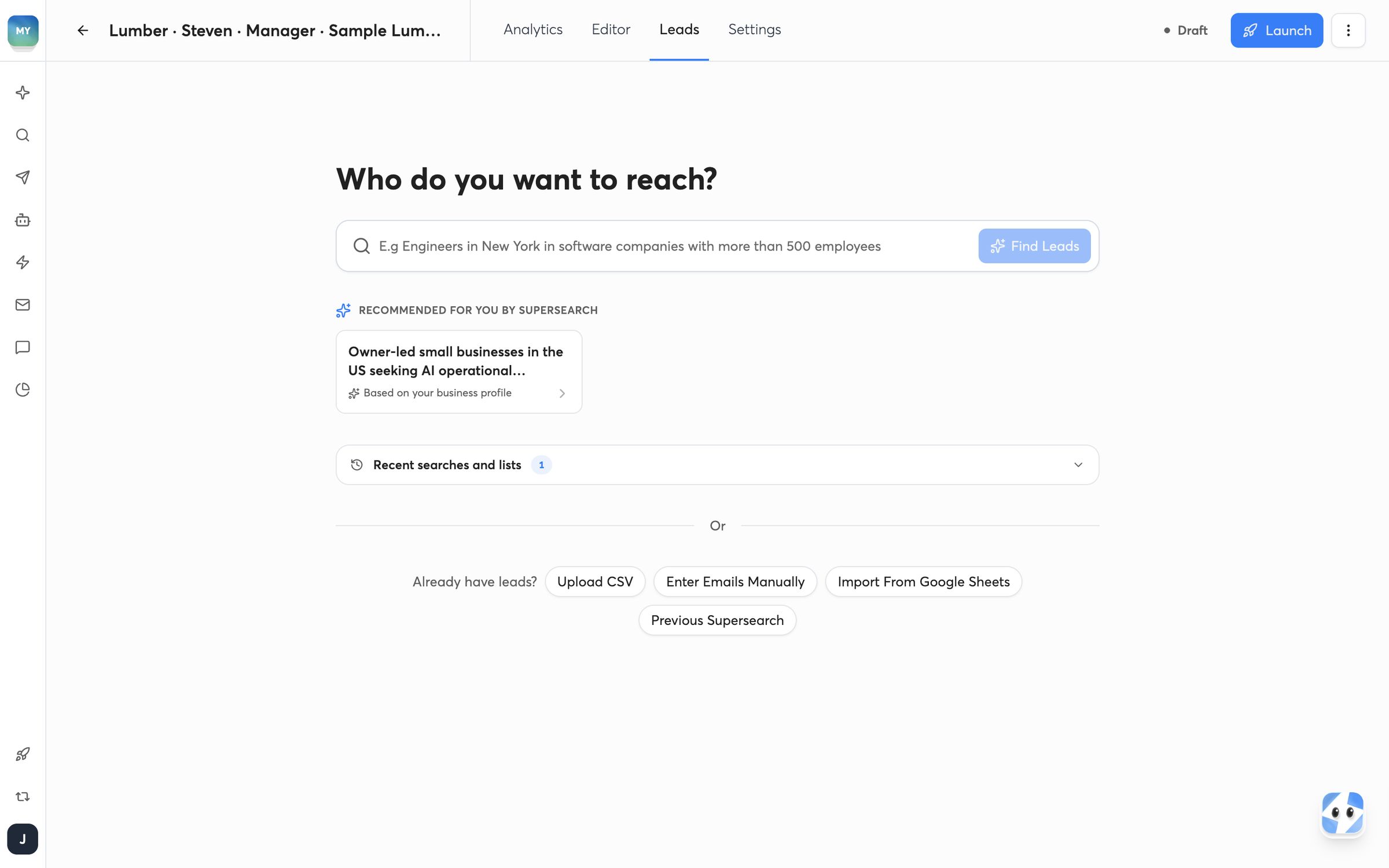 Full size
Tip. A CSV is a spreadsheet saved as plain text. In Google Sheets, use File, then Download, then Comma-separated values.
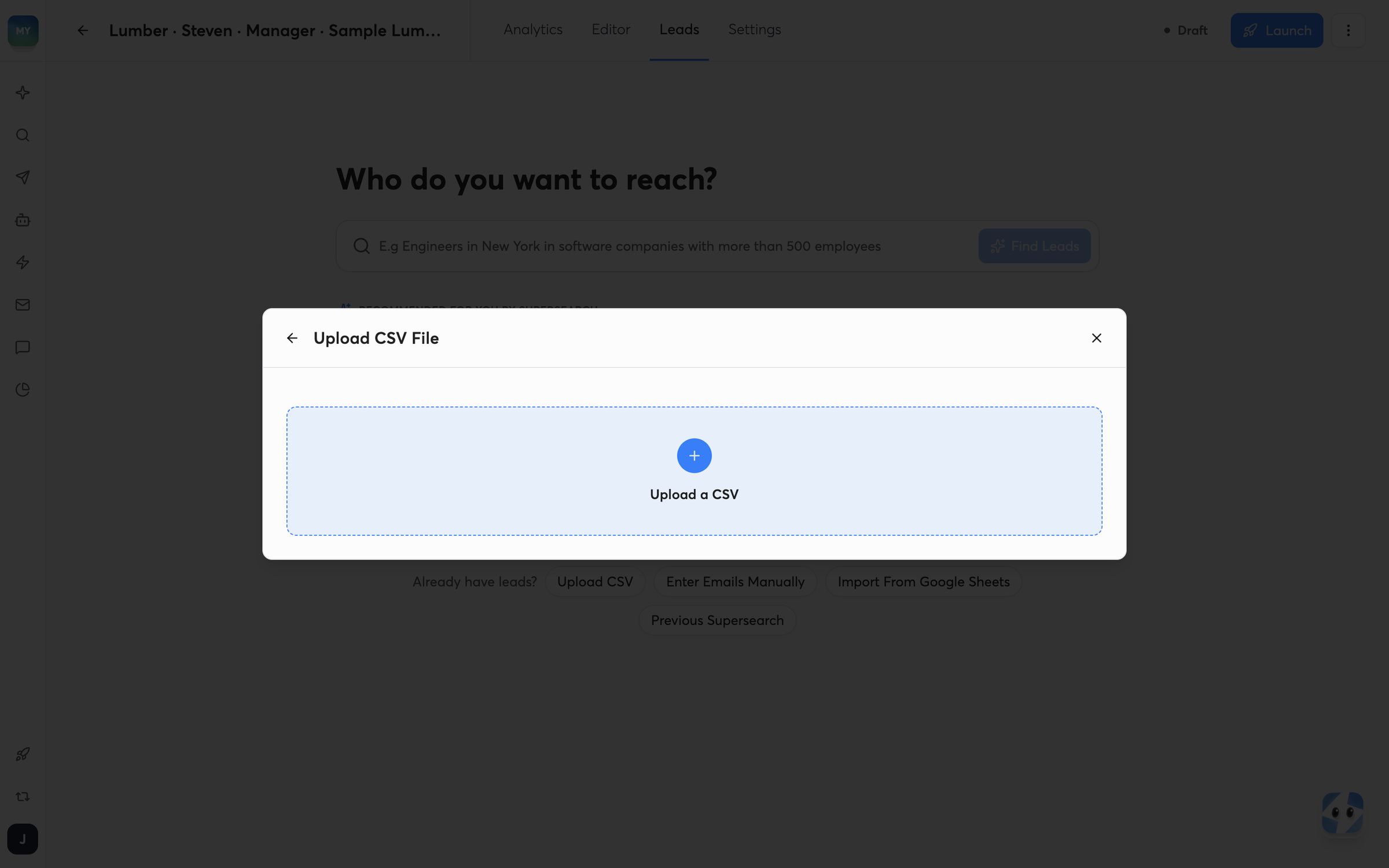
Upload a CSV opens. The file needs one line per person, with email, first name and company name. After you pick the file, match each column to its field, then confirm. This guide stops here.
Press Escape to leave without uploading anything.
 Full size
Watch out. Add at most 5 people from one company per day. A new campaign starts with 50 people; wait 2 days and check bounces before you add more.
Not started