Step 1: The campaign list
Open Engage in Instantly.
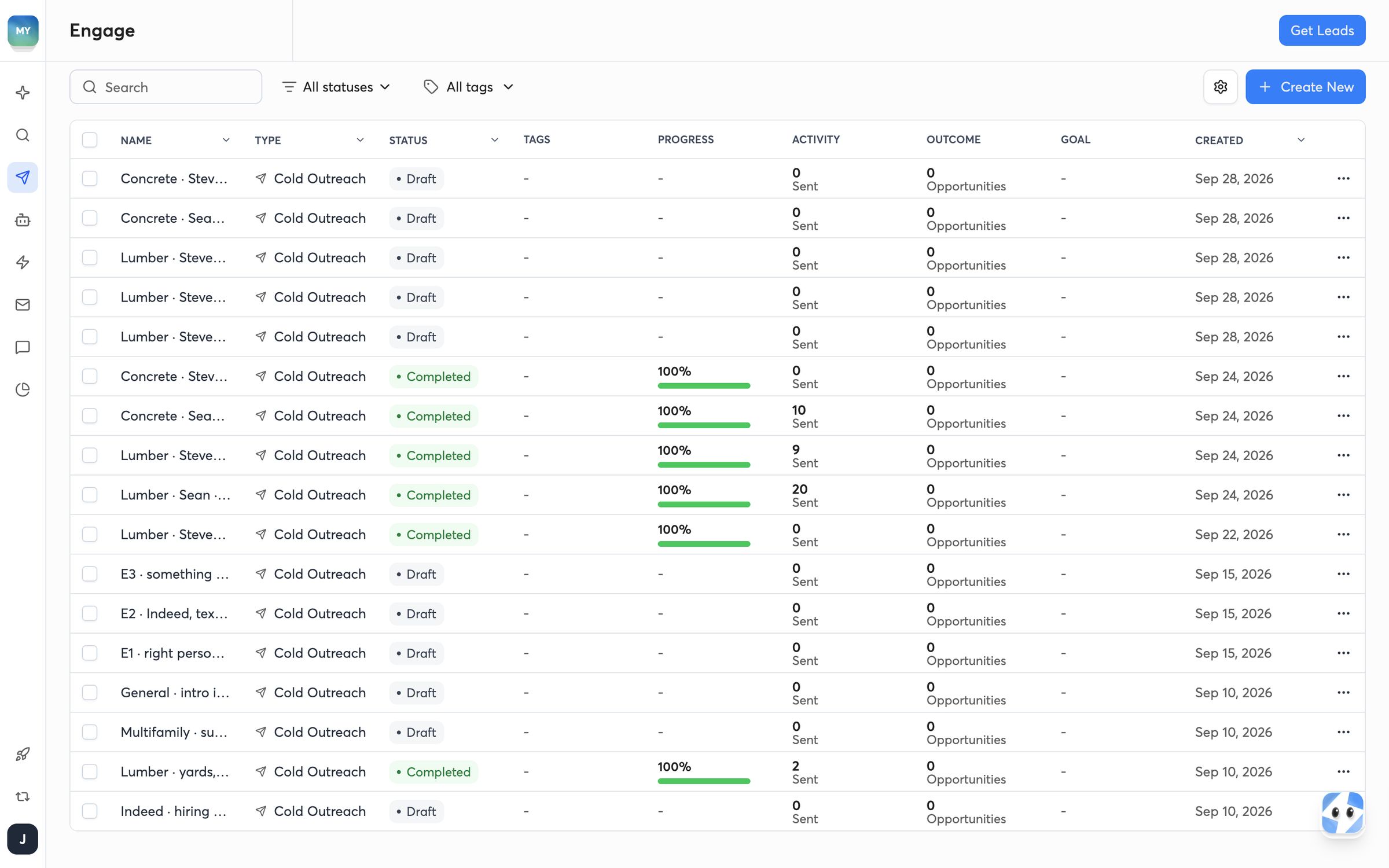
Engage lists every campaign. Status says where each one stands: Draft has never sent, Active is sending, Paused is on hold, and Completed has emailed its whole list.
 Full size

No guides found
Guide 6 of 13 · Instantly
Updated Sep 30, 2026
A campaign is one group of people, the two emails they get, and the mailboxes that send them. This guide opens a finished campaign and walks each tab: Analytics, Editor, Leads and Settings.
The narrated video of this guide is in the library: https://campus.boldestimations.com/video/instantly-inside-a-campaign.mp4
Screens recorded Sep 30, 2026 in Bold Estimation's Zapmail, Instantly and Google accounts. Names, email addresses and phone numbers of real people are replaced with placeholders or blurred, and typed examples are made up. If a screen looks a little different, the tool has updated: find the same label nearby.
Open Engage in Instantly.
Engage lists every campaign. Status says where each one stands: Draft has never sent, Active is sending, Paused is on hold, and Completed has emailed its whole list.
Full sizeClick a campaign to open it.
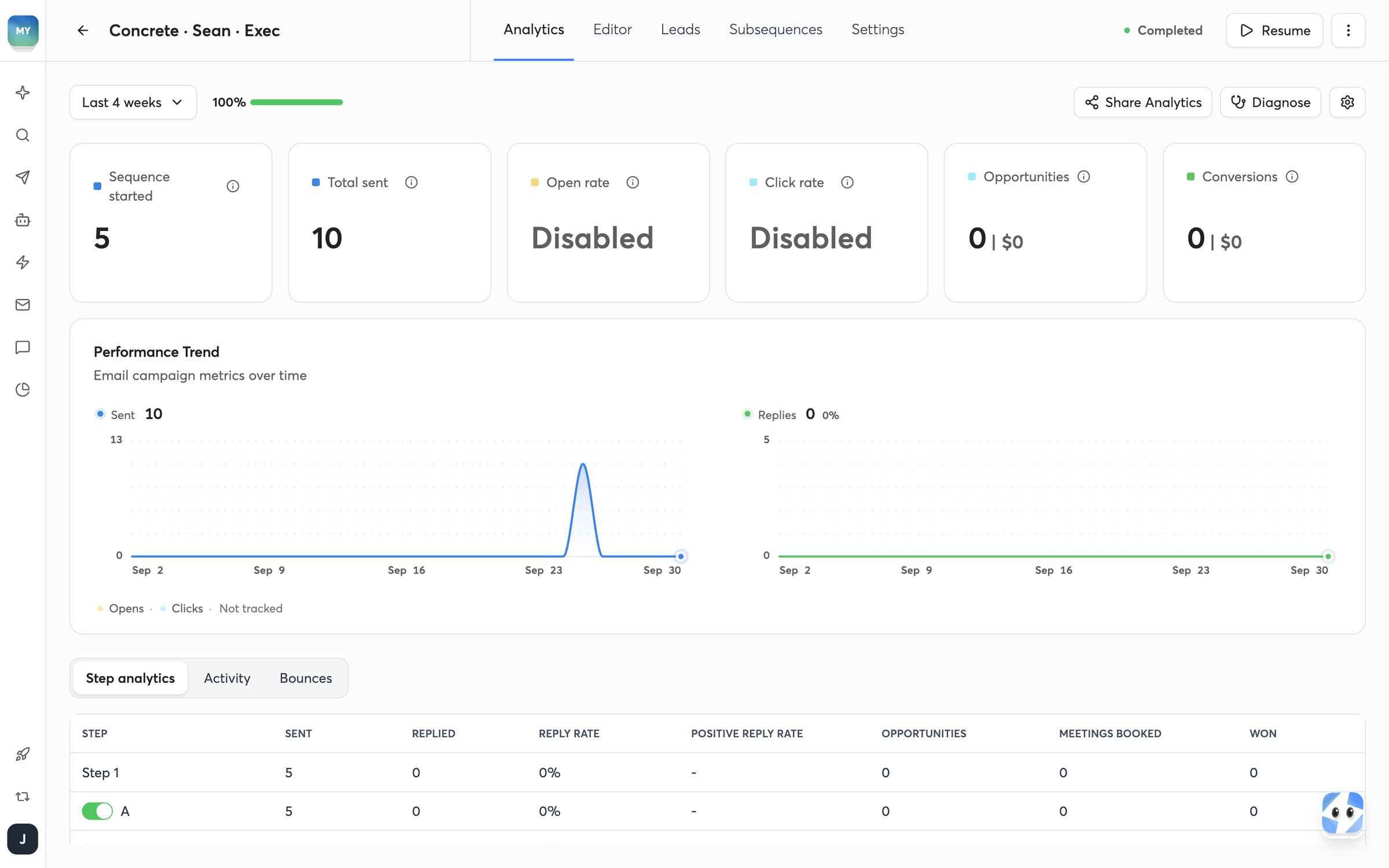
It opens on Analytics, with how many people got the first email and how many emails went out in all.
 Full size
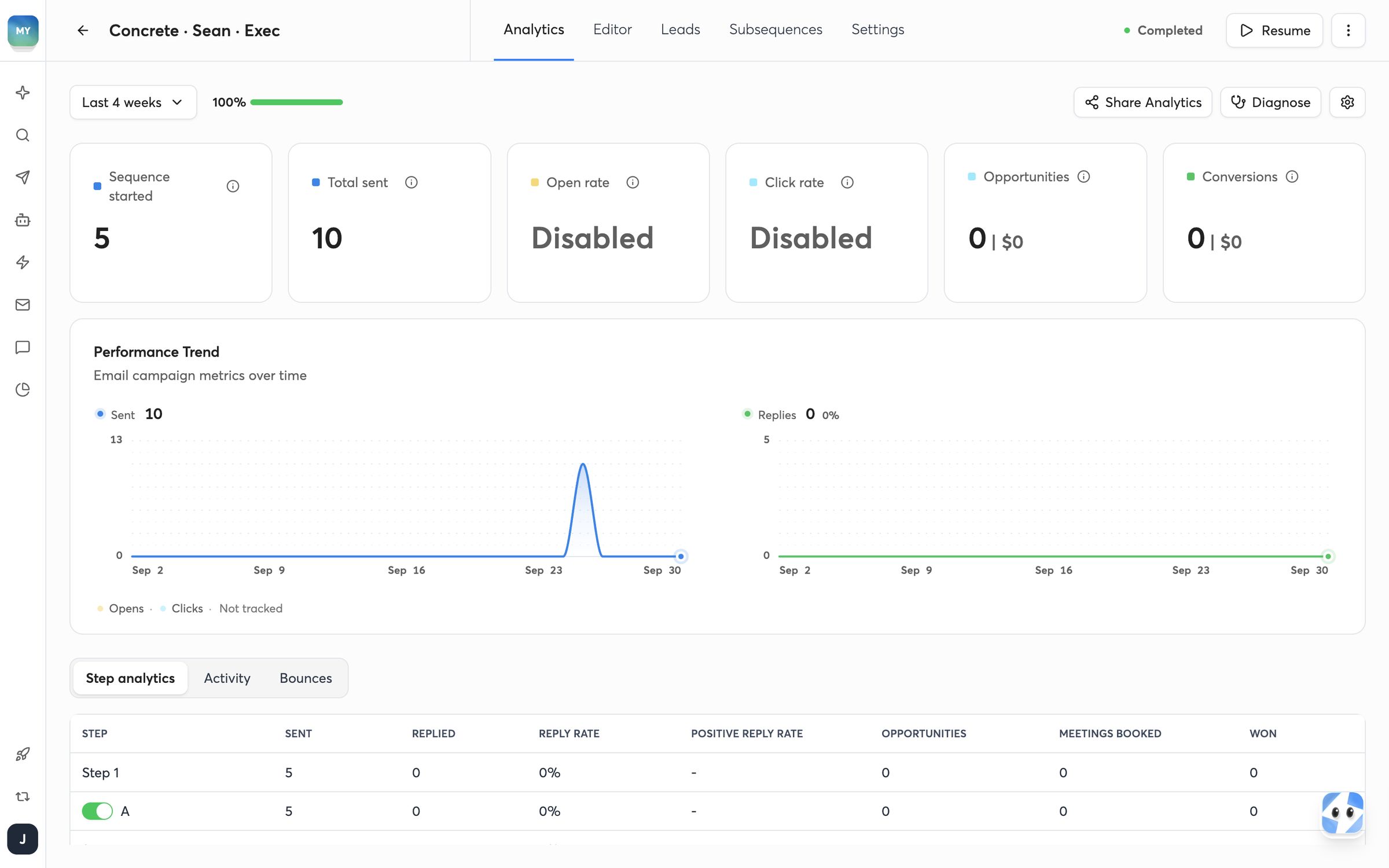
Open rate and click rate say Disabled on purpose. Tracking makes an email look like marketing, so it stays off in every campaign.
 Full size
Open the Editor tab.
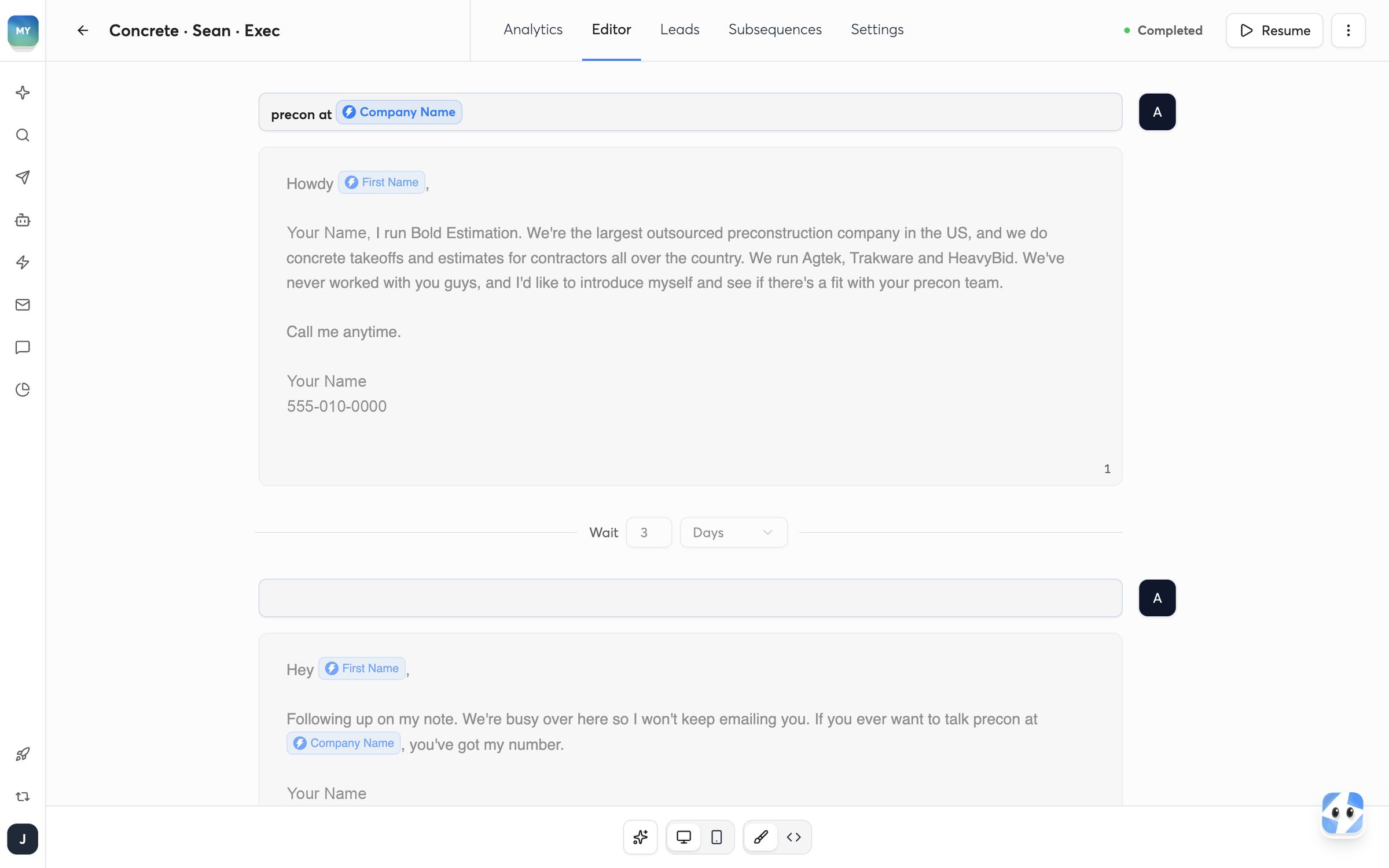
Editor holds the two emails: the first one, then a follow up three days later to anyone who has not replied.
 Full size
Watch out. The Editor saves as you type, straight into the campaign. Pause the campaign before you change a word, make the change, then resume it. New wording starts in the email templates doc (guide 13).
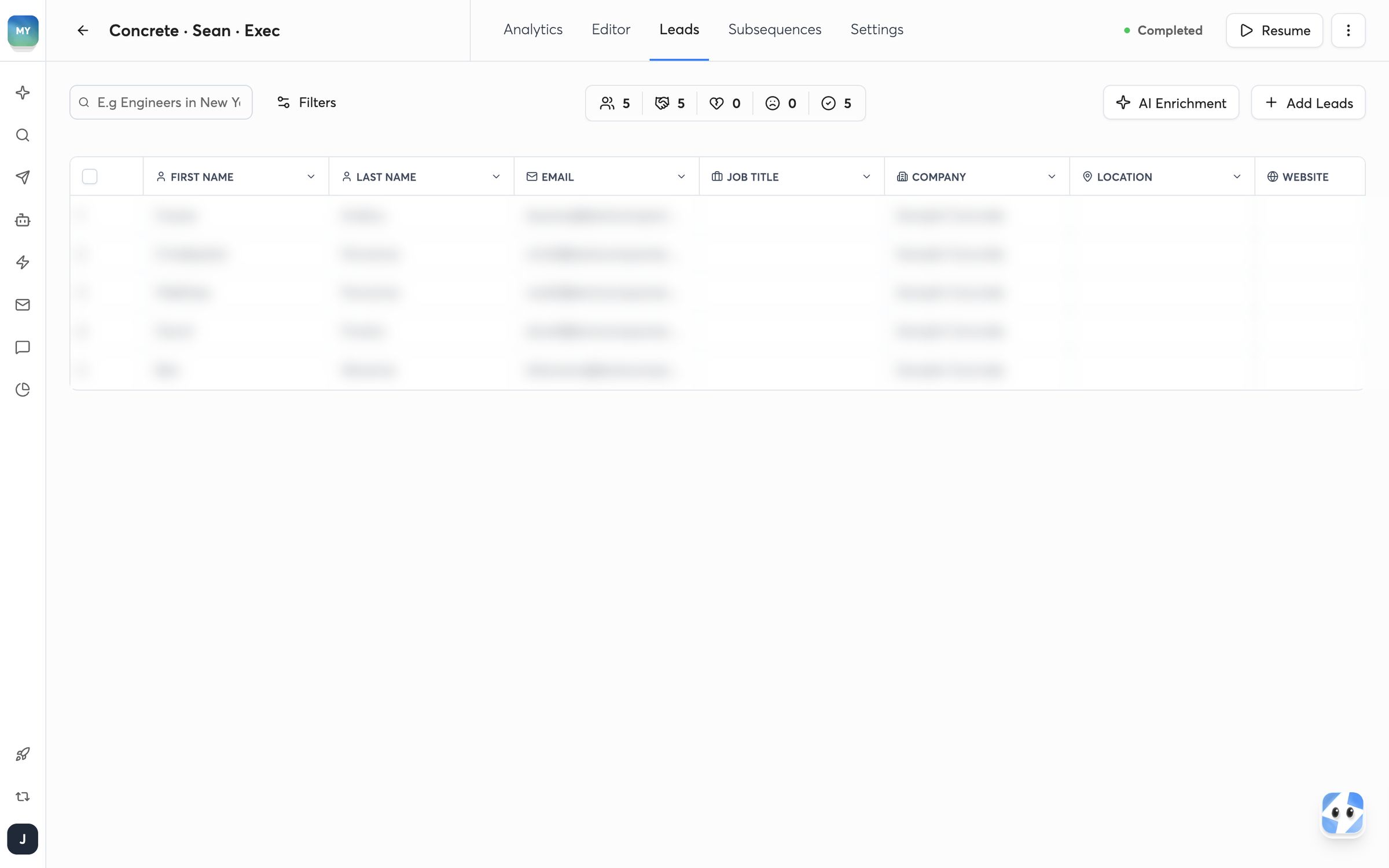
Open the Leads tab.
Leads lists every person in the campaign, with counts above the table for how many were contacted and how many bounced.
 Full size
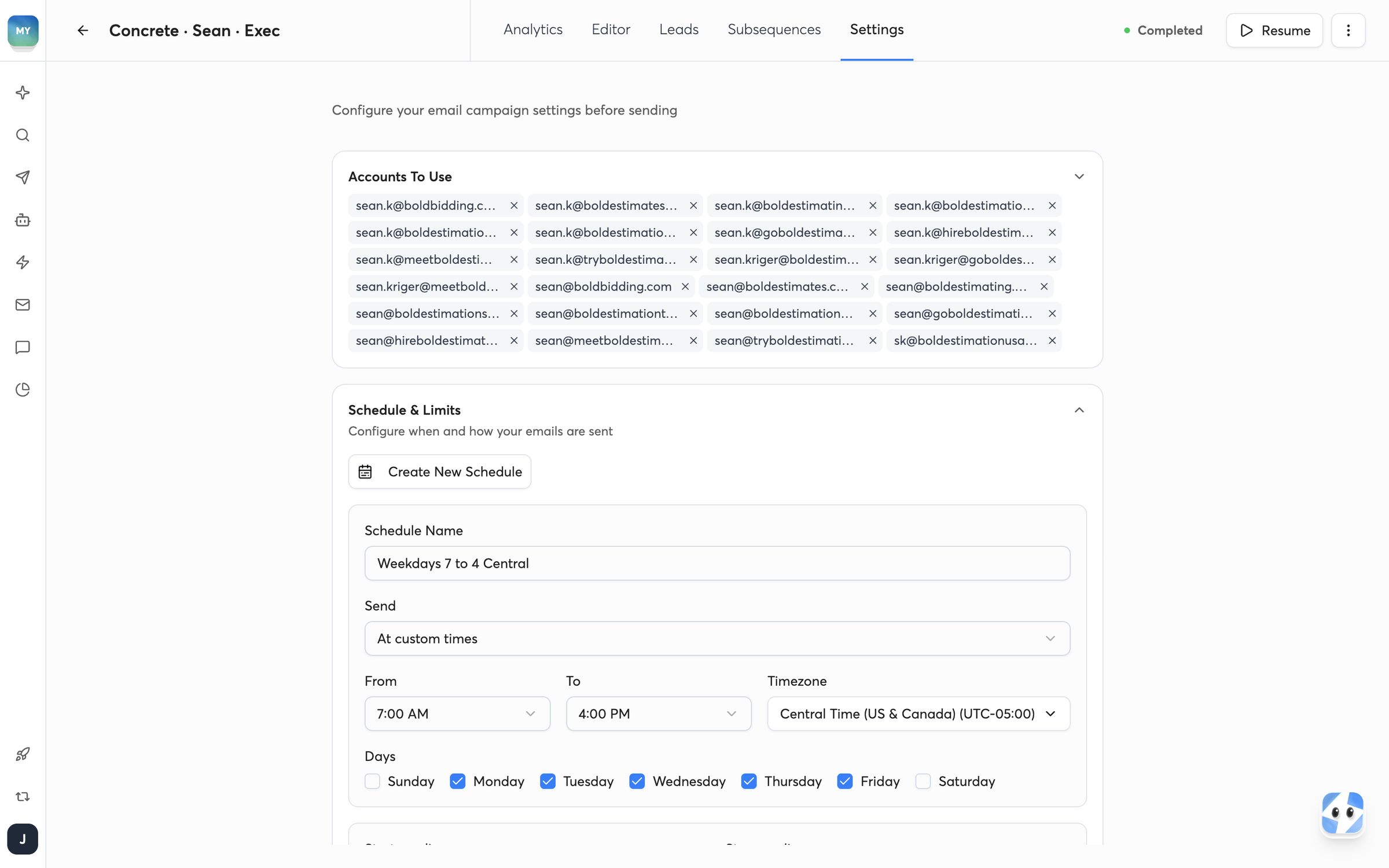
Open the Settings tab.
Settings holds who sends, when, and how many. Under Schedule and Limits, Bold sends on weekdays, seven in the morning to four in the afternoon, Central time.
 Full size
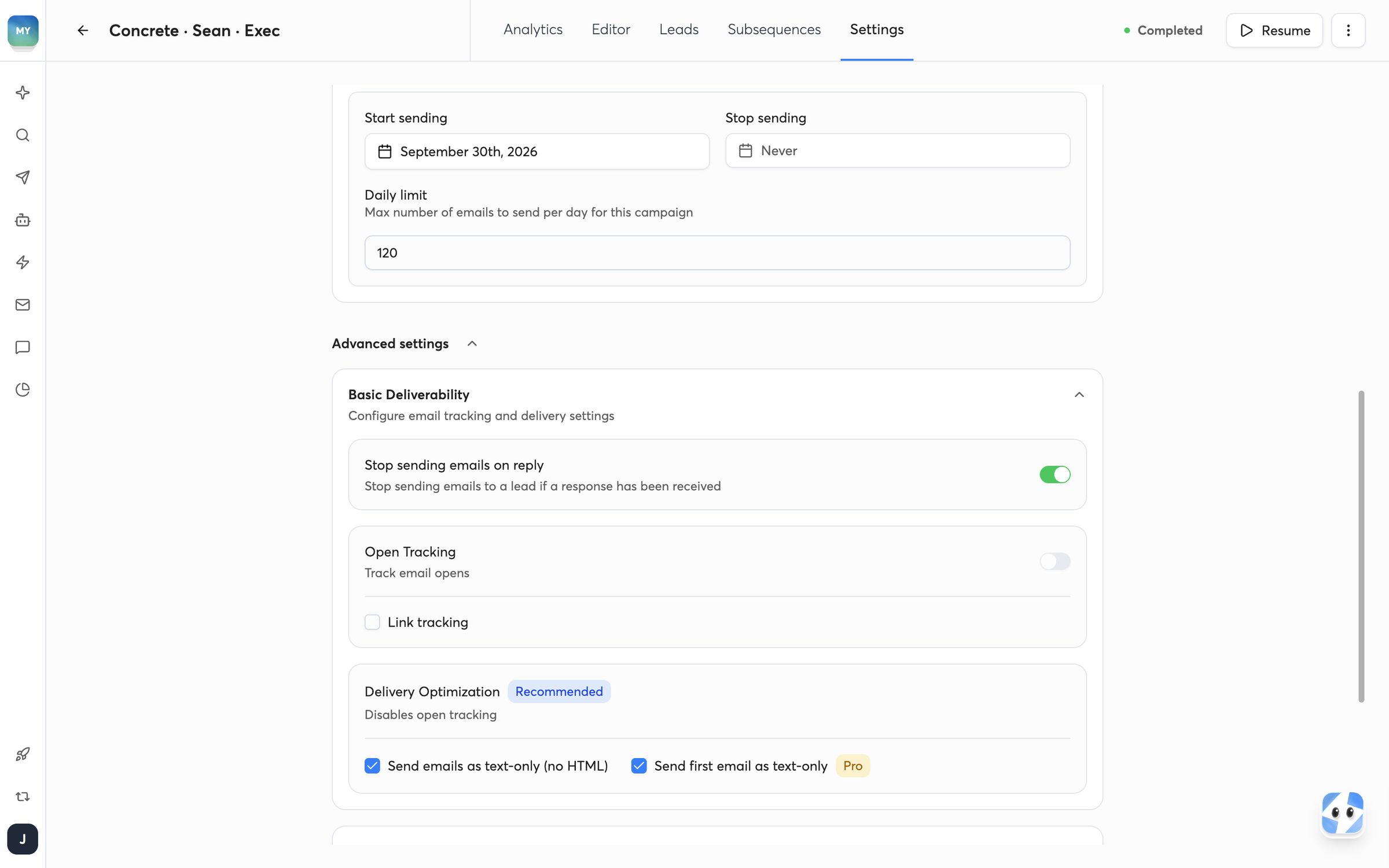
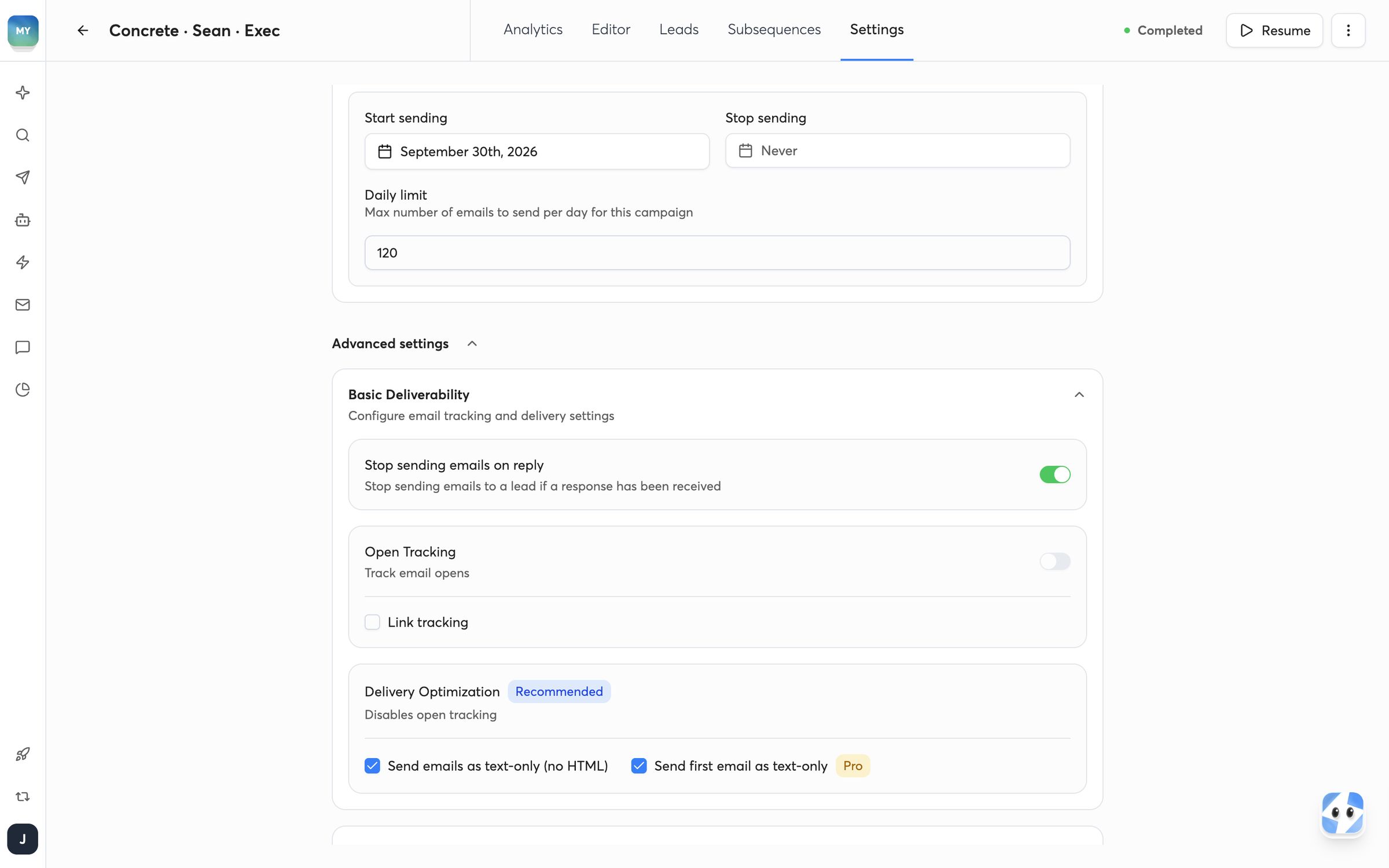
Further down, stop sending on reply stays on, both kinds of tracking stay off, and emails go out as text only.
 Full size
The button at the top right is the brake. It says Pause while a campaign sends, and Resume once it has finished.
 Full size
Watch out. Pause when bounces pass 2 percent or anything looks wrong, fix the cause, then resume. Never press Resume on a Completed campaign: it has already emailed everyone on its list. Duplicate it instead (guide 9).
Not started