Step 1: Search a domain idea
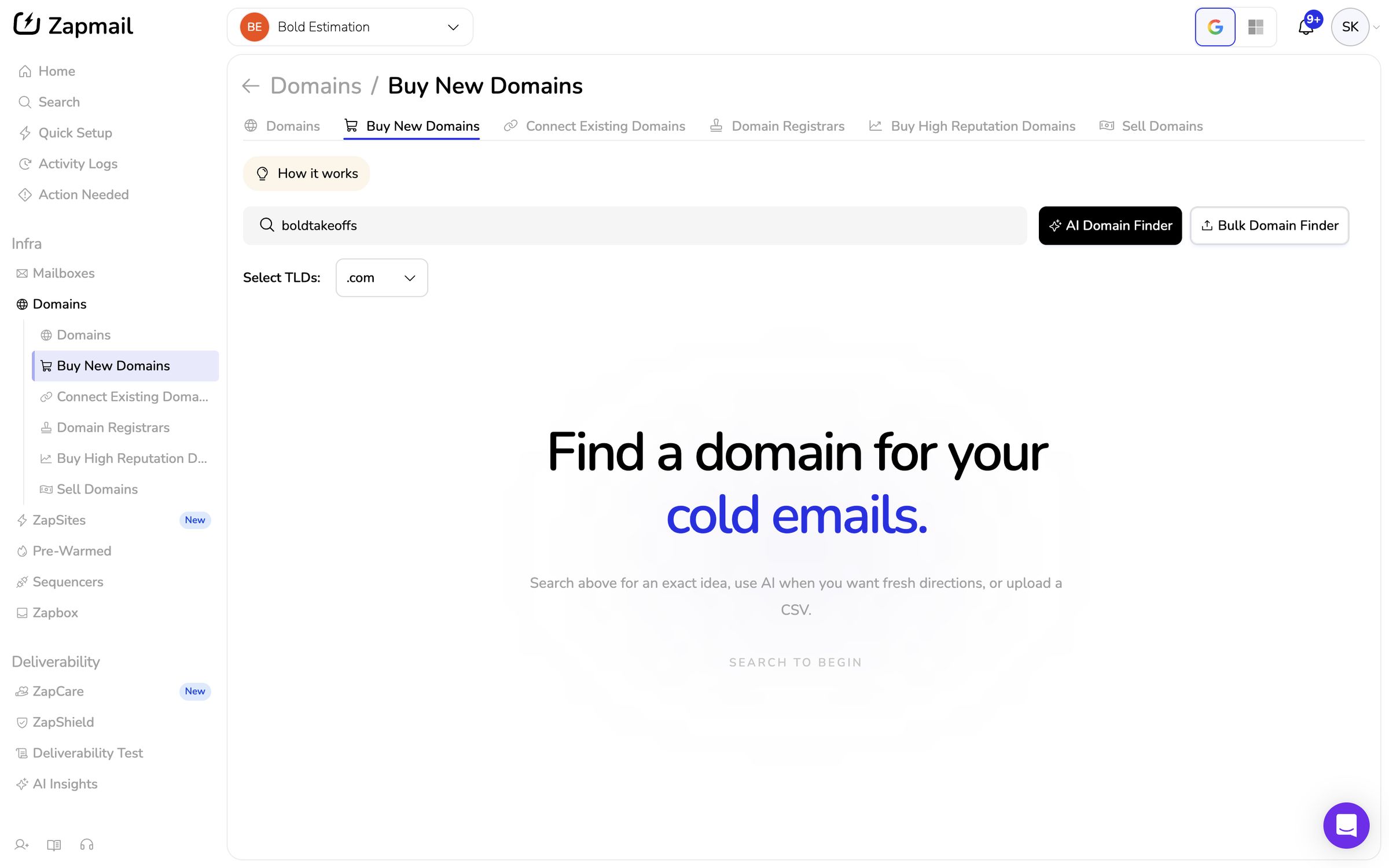
In Zapmail, open Domains, then Buy New Domains. Type a domain idea that sounds like the brand. This example uses a made-up one, bold takeoffs.
 Full size

No guides found
Guide 3 of 13 · Zapmail · Zapmail, Instantly
Updated Sep 30, 2026
More emails a day means more mailboxes. This guide goes from searching for a domain in Zapmail to warming the new mailboxes in Instantly. The example uses a made-up domain and stops before anything is bought.
The narrated video of this guide is in the library: https://campus.boldestimations.com/video/zapmail-buy-and-send-to-instantly.mp4
Screens recorded Sep 30, 2026 in Bold Estimation's Zapmail, Instantly and Google accounts. Names, email addresses and phone numbers of real people are replaced with placeholders or blurred, and typed examples are made up. If a screen looks a little different, the tool has updated: find the same label nearby.
In Zapmail, open Domains, then Buy New Domains. Type a domain idea that sounds like the brand. This example uses a made-up one, bold takeoffs.
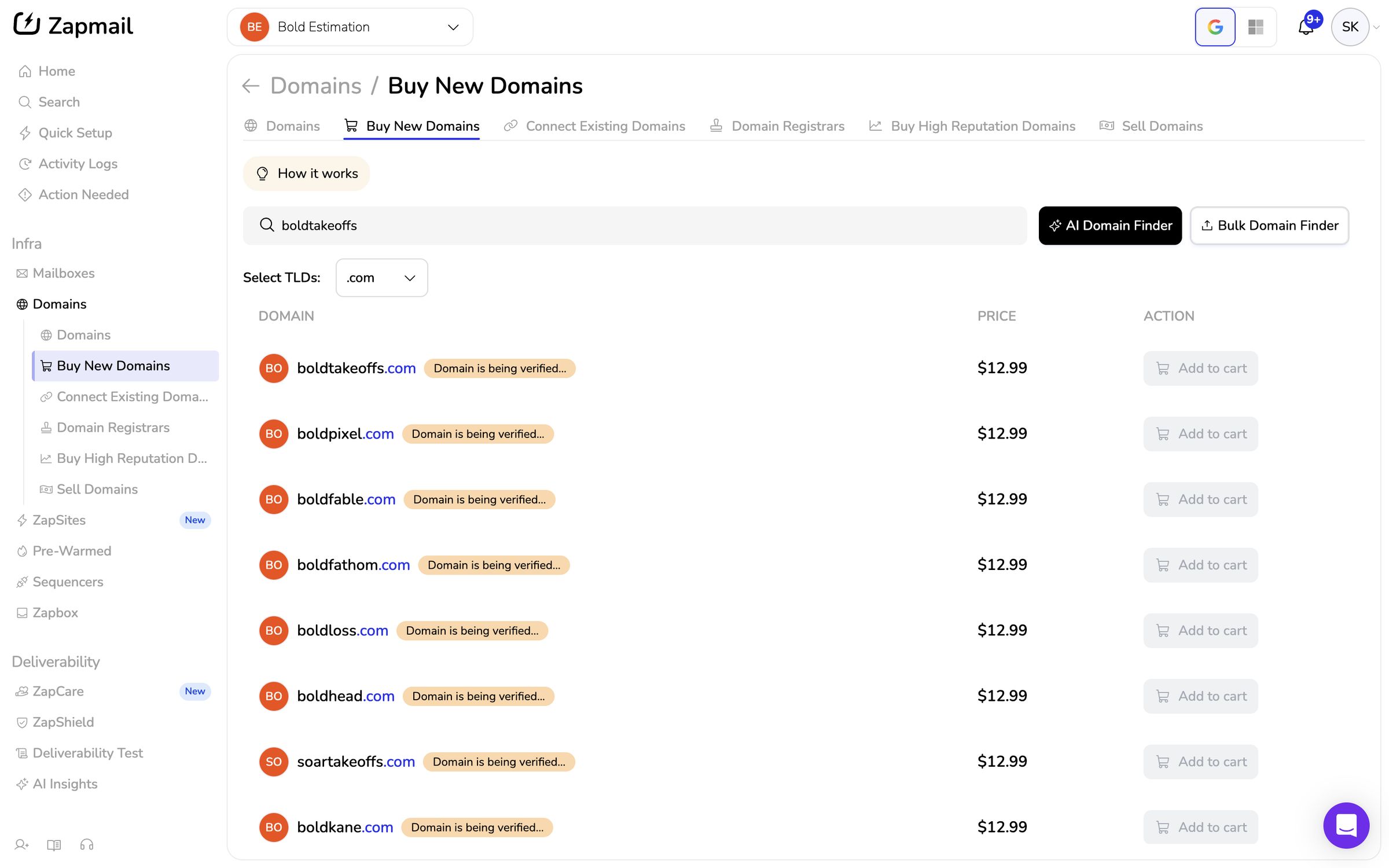
Full sizePress Enter. Zapmail checks the idea and suggests similar names, each with a price.
The first line is your exact idea. A domain costs about thirteen dollars a year. Pick names a buyer would trust.
 Full size
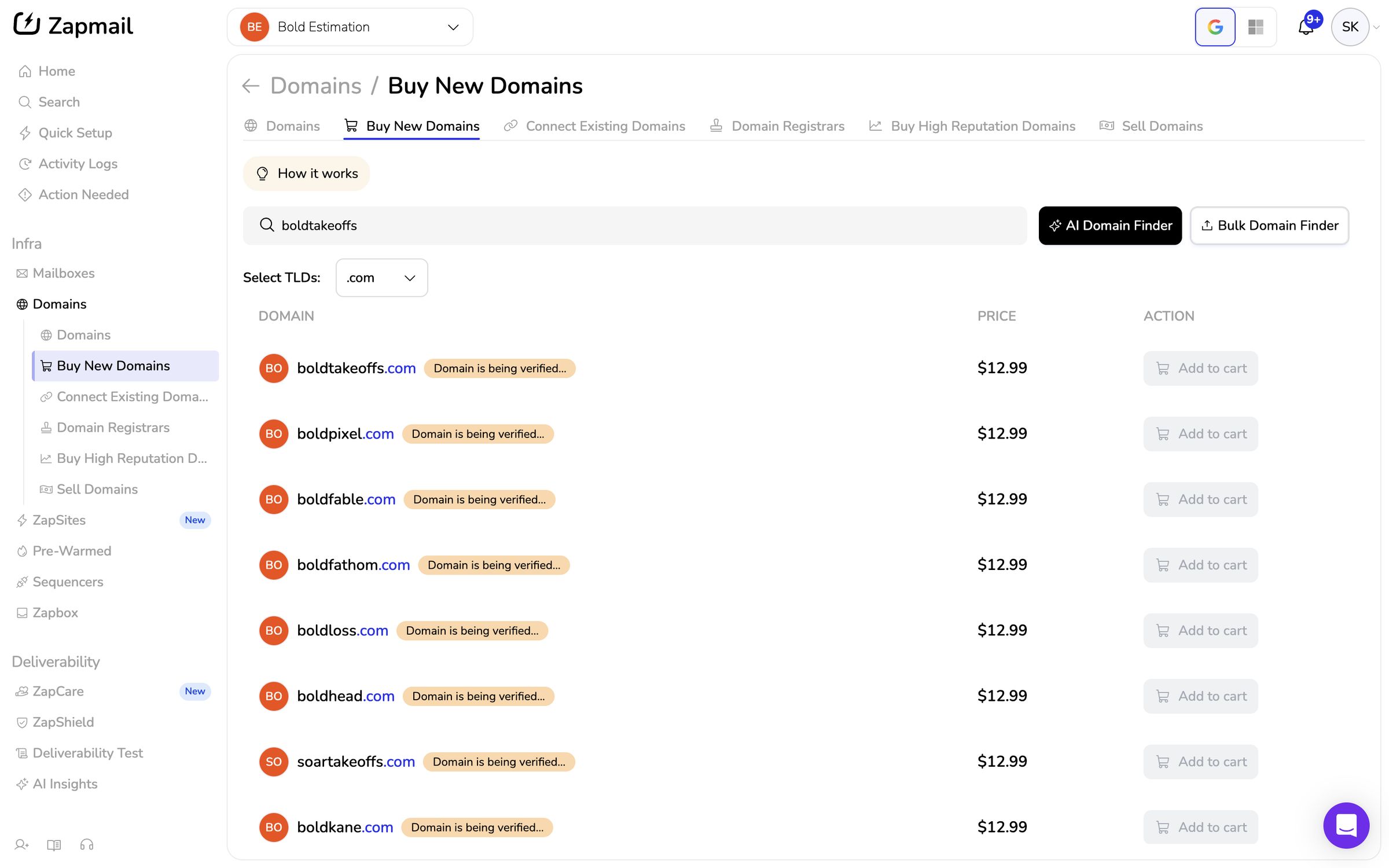
Add to cart starts the purchase. A good batch is eight domains with three mailboxes each, which adds about seventy emails a day once they are warm.
 Full size
Watch out. New mailboxes need 19 days of warmup before they join a campaign. Buy about three weeks before you need the extra emails, and check the total at checkout before you pay.
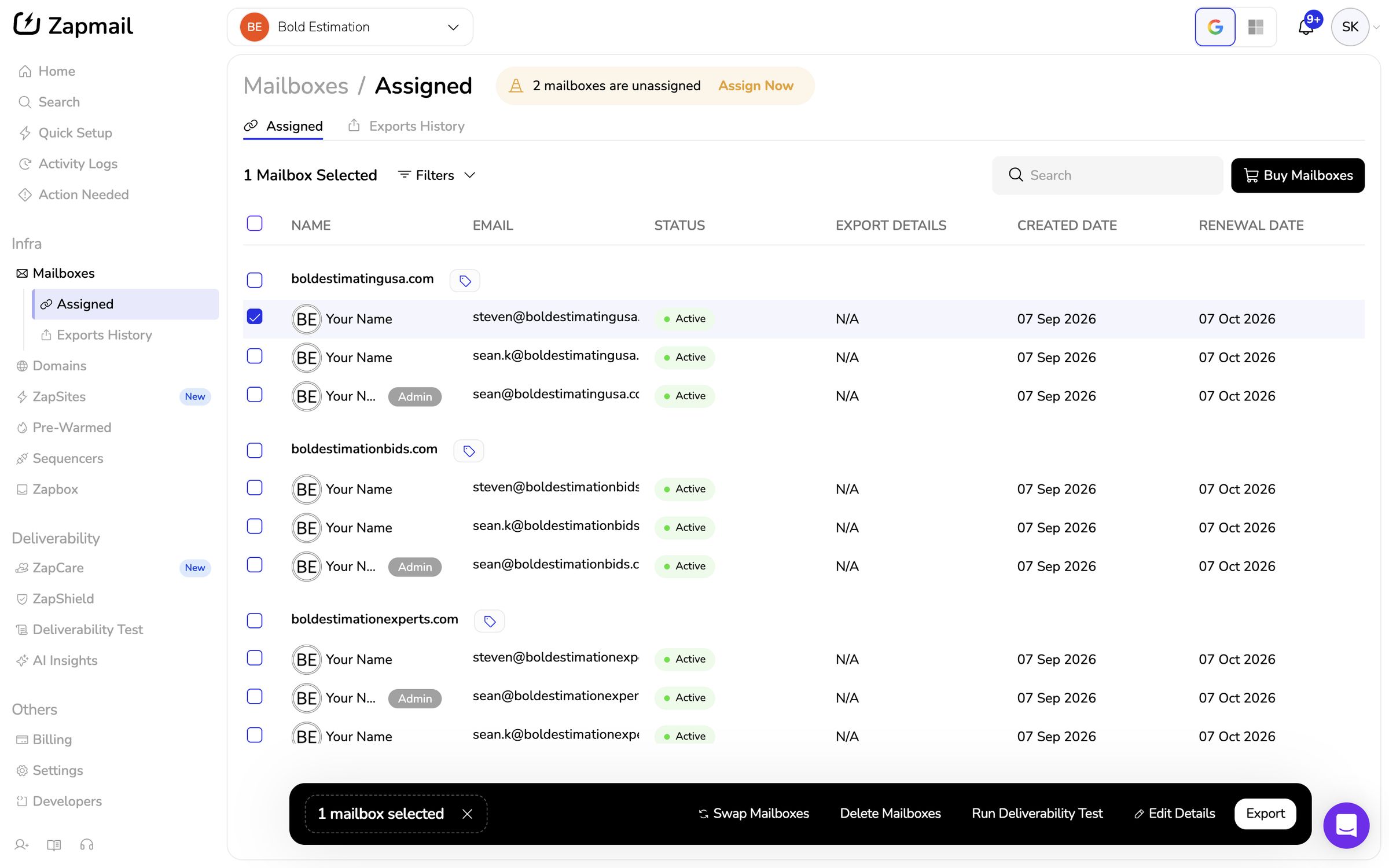
After the purchase, the new mailboxes appear under Mailboxes.
Tick the box next to each new mailbox. Ticking changes nothing by itself.
A toolbar appears at the bottom. Export sends the ticked mailboxes to Instantly.
 Full size
Watch out. The same toolbar holds Delete Mailboxes and Swap Mailboxes. Make sure you press Export.
The export screen shows Instantly as the connected tool. Its Export link starts the handover, which takes about thirty minutes.
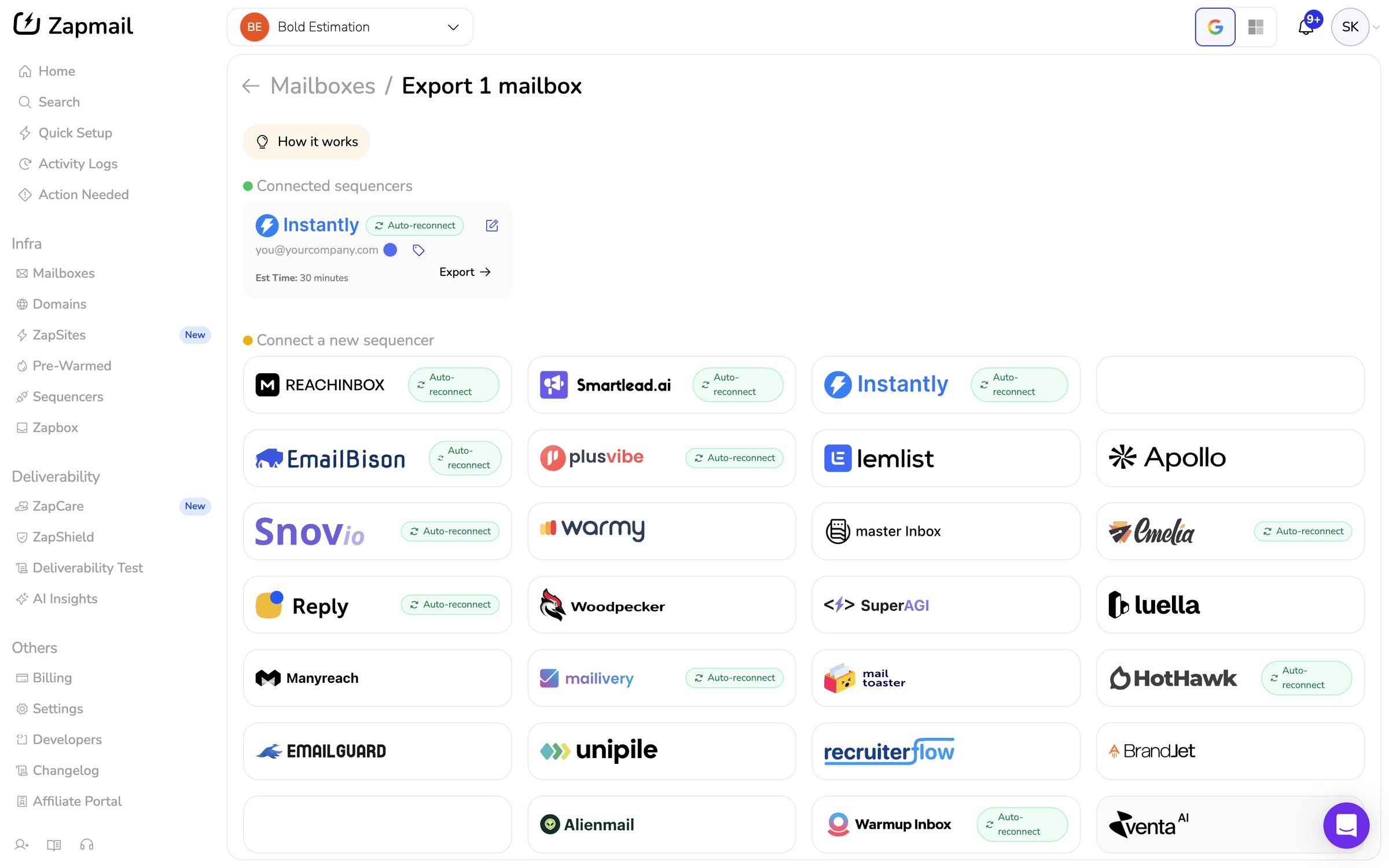 Full size
Tip. If the export stalls for domains bought the same day, wait a day and export again, or add each mailbox in Instantly with Add or Buy Accounts and the mailbox's app password from Zapmail.
In Instantly, the new mailboxes appear under Email Accounts with warmup on.
Leave them out of every campaign for nineteen days, then add them.
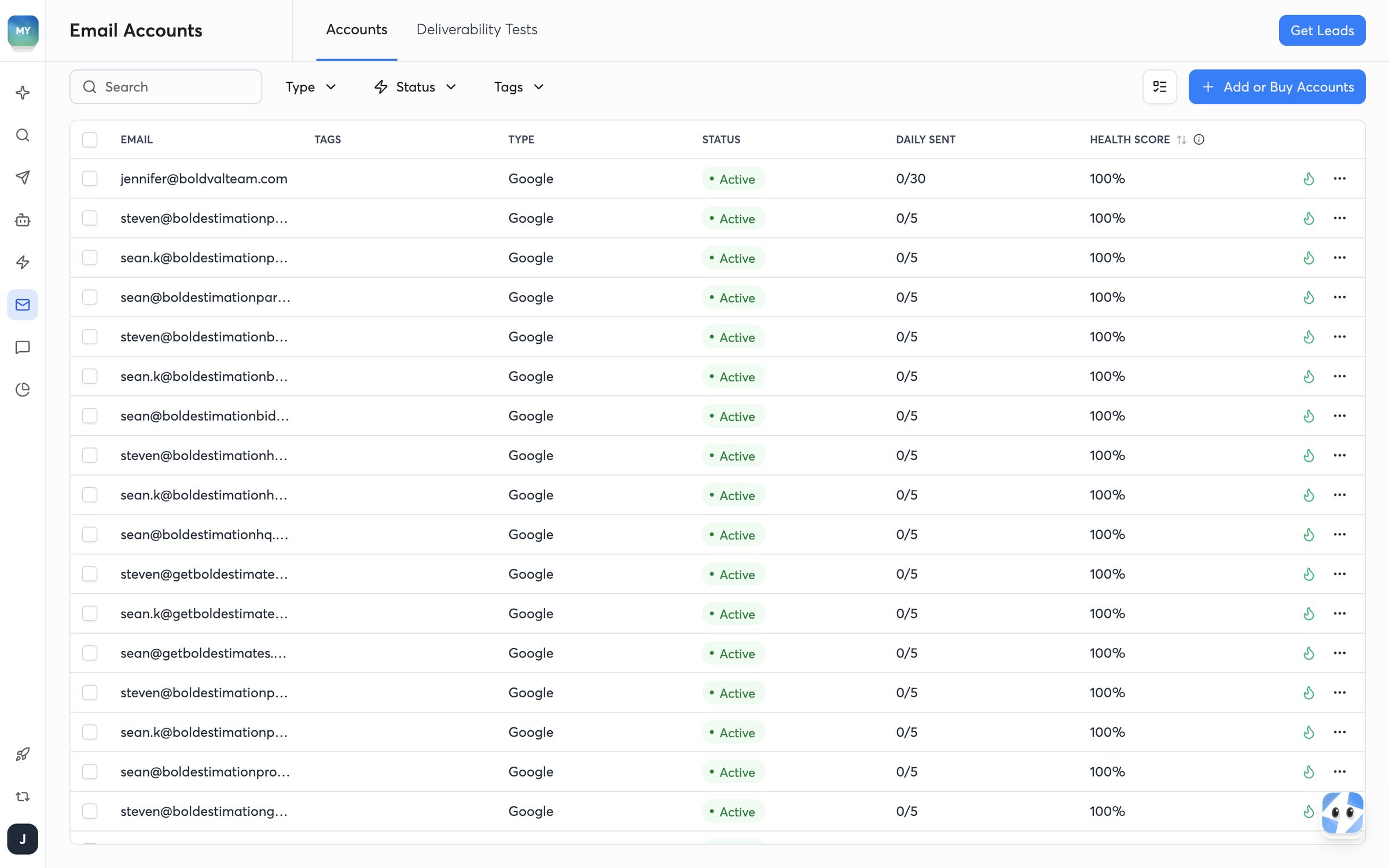 Full size
Not started