Step 1: The left bar
Sign in to Instantly.
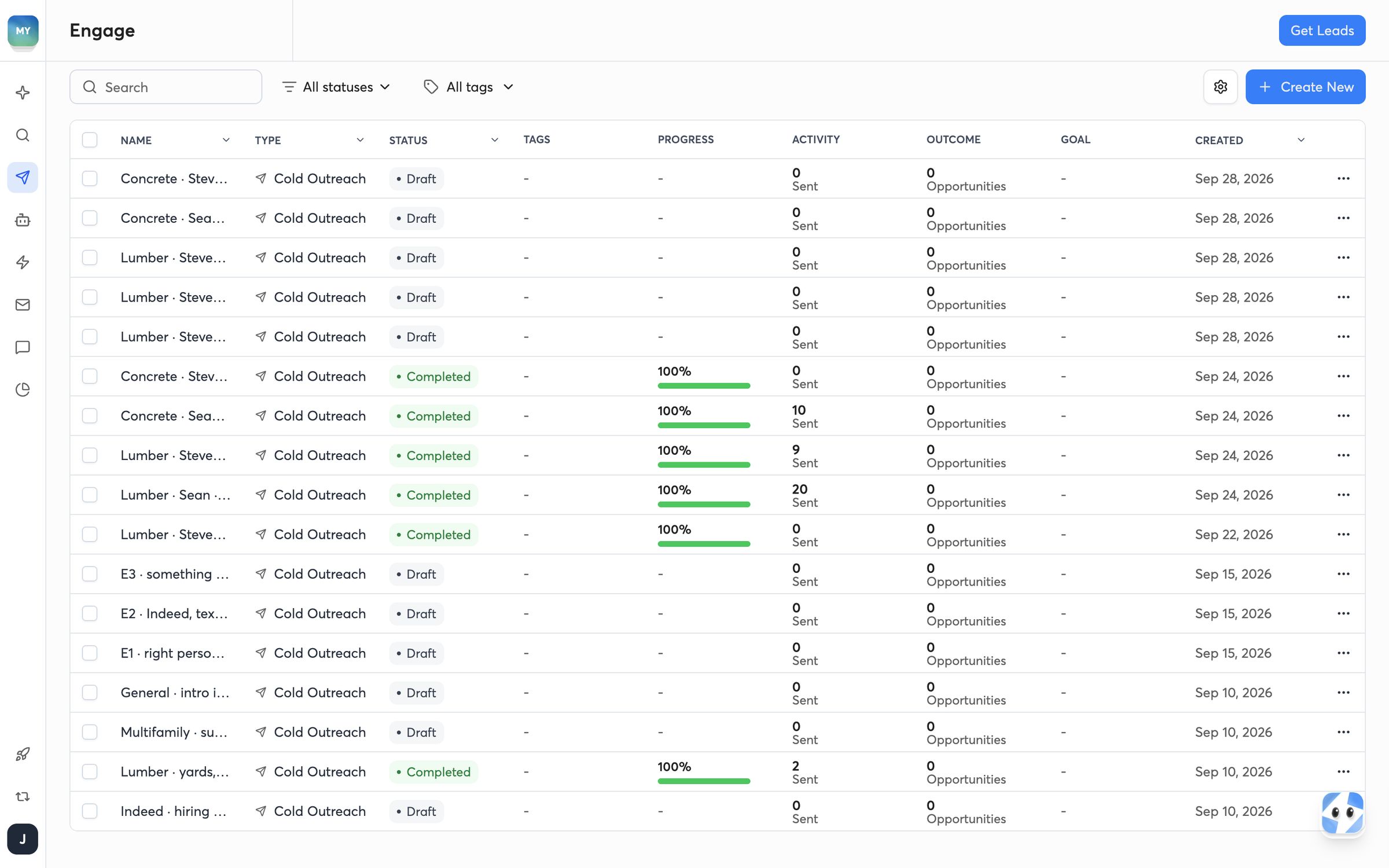
The bar on the left holds every part of Instantly. The paper plane is Engage, where the campaigns are. The speech bubble is the Unibox, where replies arrive.
 Full size

No guides found
Guide 4 of 13 · Instantly
Updated Sep 30, 2026
Instantly is the tool that sends Bold's campaigns. Sign in at app.instantly.ai. This tour shows where everything sits, what the numbers on each mailbox mean, and why warmup always stays on. You only look; no setting changes.
The narrated video of this guide is in the library: https://campus.boldestimations.com/video/instantly-tour-and-email-accounts.mp4
Screens recorded Sep 30, 2026 in Bold Estimation's Zapmail, Instantly and Google accounts. Names, email addresses and phone numbers of real people are replaced with placeholders or blurred, and typed examples are made up. If a screen looks a little different, the tool has updated: find the same label nearby.
Sign in to Instantly.
The bar on the left holds every part of Instantly. The paper plane is Engage, where the campaigns are. The speech bubble is the Unibox, where replies arrive.
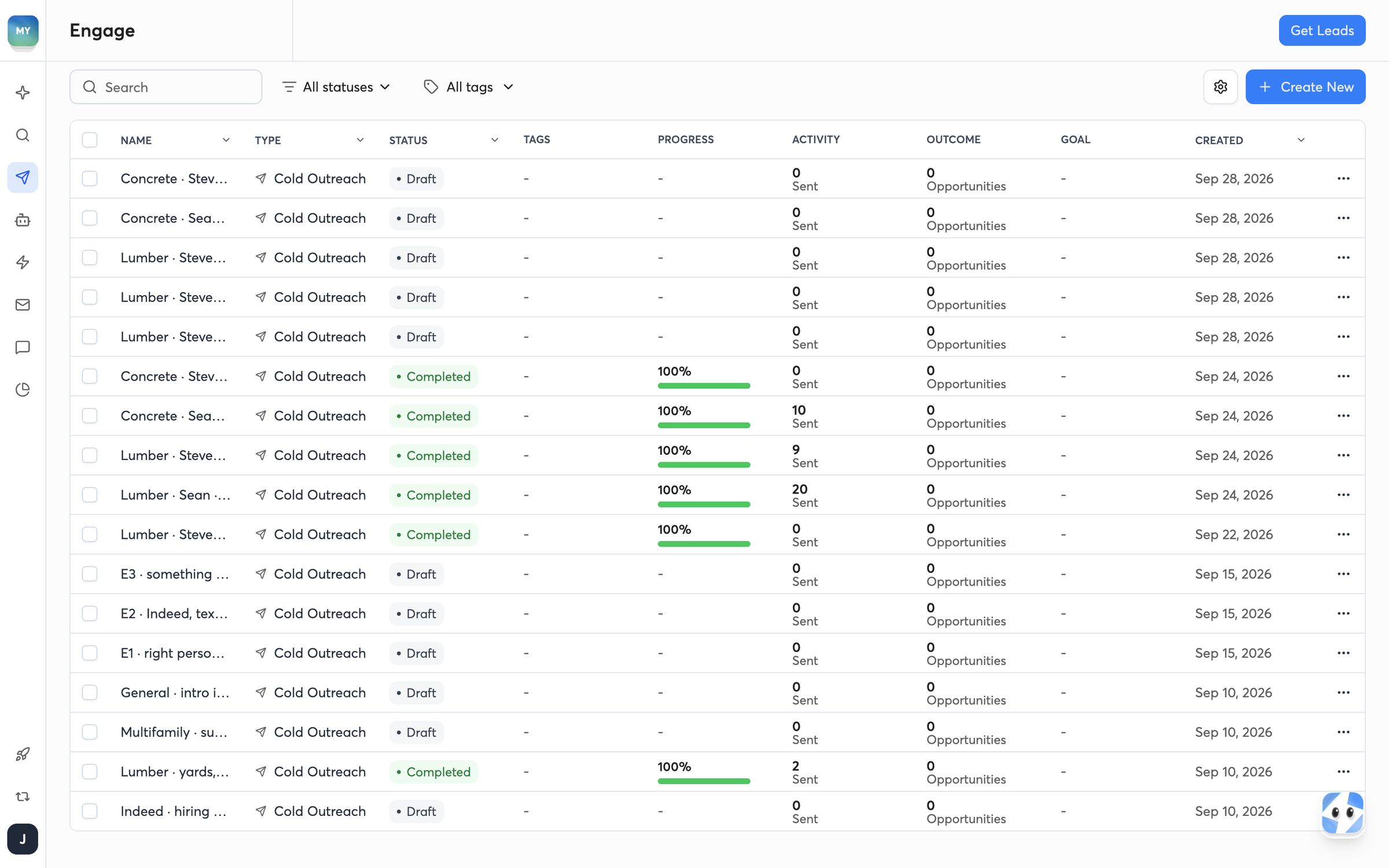
Full sizeThe envelope opens Email Accounts. Each line is one sending mailbox.
 Full size
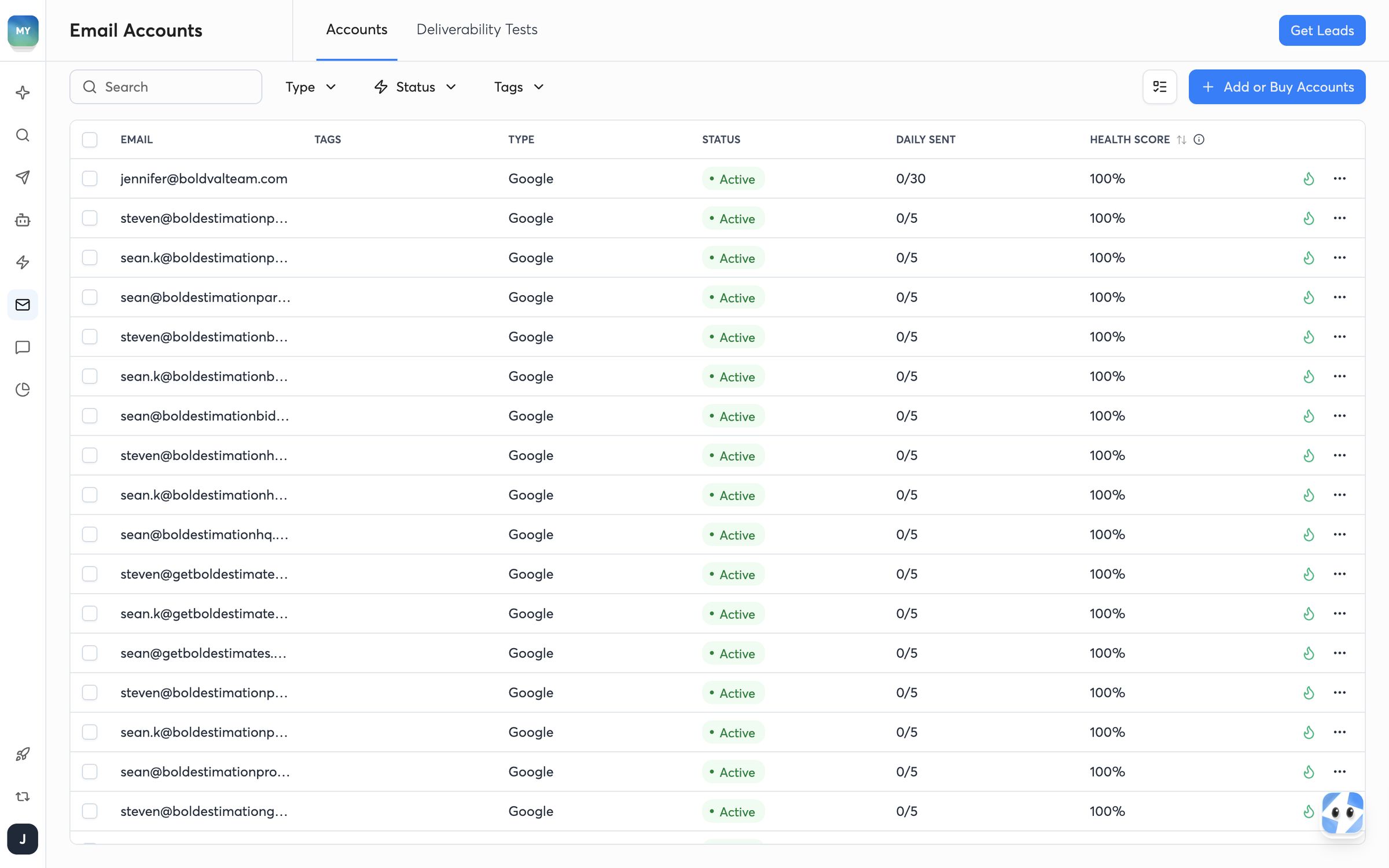
Daily Sent shows today's campaign emails against the mailbox's limit, like zero of five. Health Score shows how well its emails land. Healthy is 95 percent or more.
 Full size
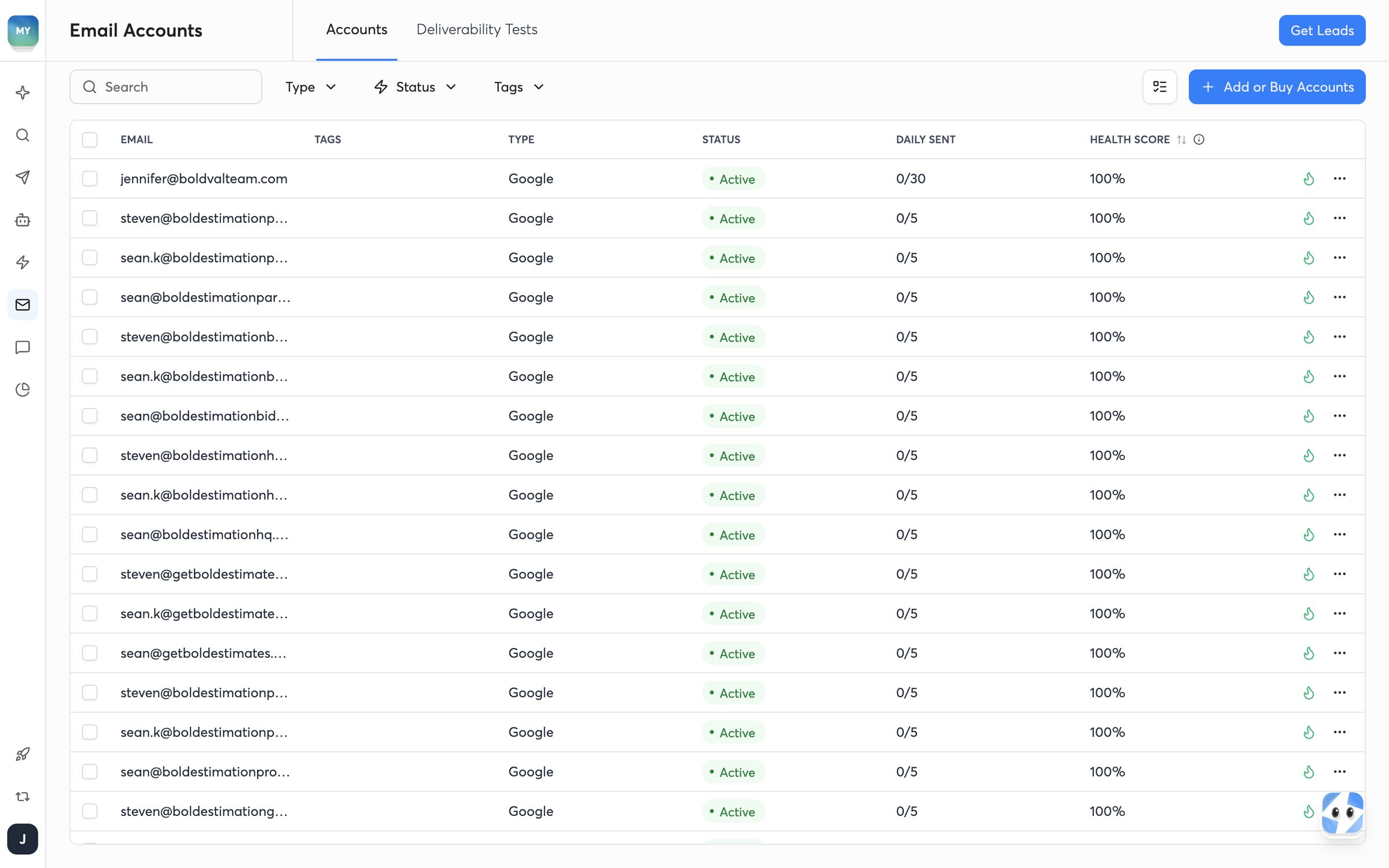
The green flame means warmup is on. Warmup trades friendly emails with other mailboxes, so inboxes learn to trust yours. Leave it on for every mailbox.
 Full size
Watch out. Never turn warmup off, even on mailboxes that send campaigns. Without it a mailbox loses trust within days and its emails start landing in spam. If a flame is grey, open the mailbox and switch warmup back on in its Warmup tab.
Click a mailbox to open its details.
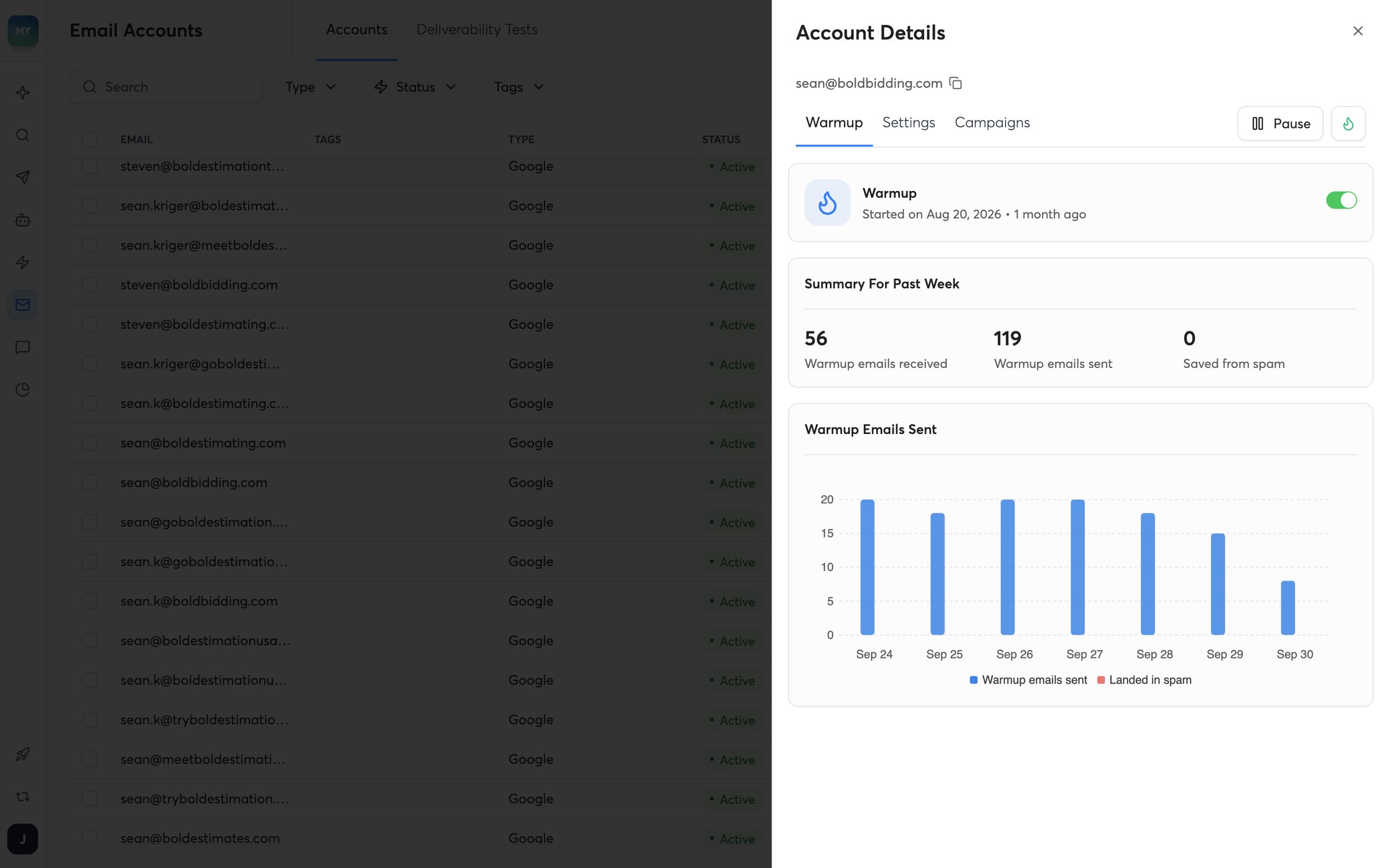
The Warmup tab shows the past week. Saved from spam should stay at zero.
 Full size
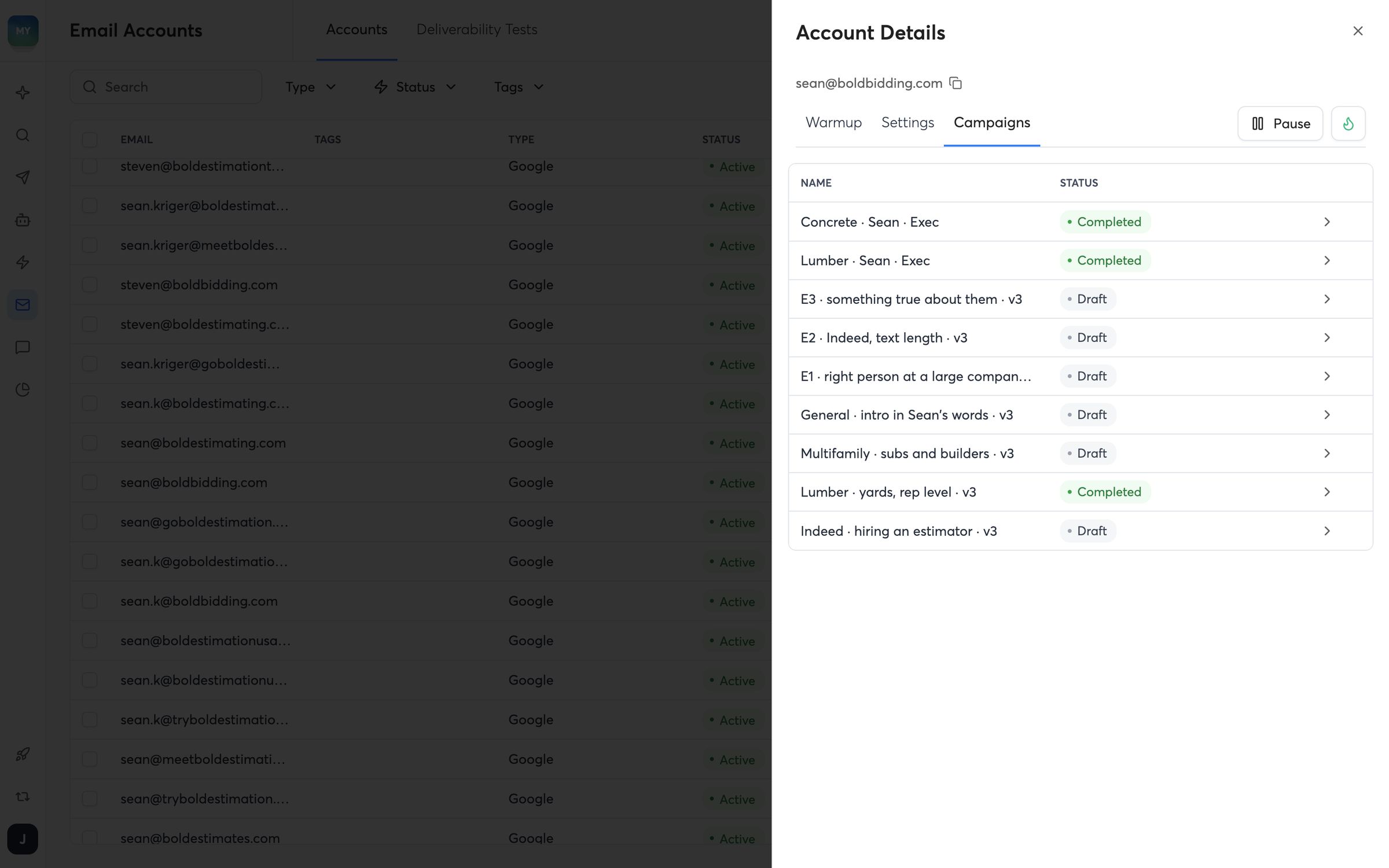
The Campaigns tab lists every campaign this mailbox sends for.
Press Escape to go back to the list.
 Full size
Not started