Step 1: Filter by status
Open Engage in Instantly.
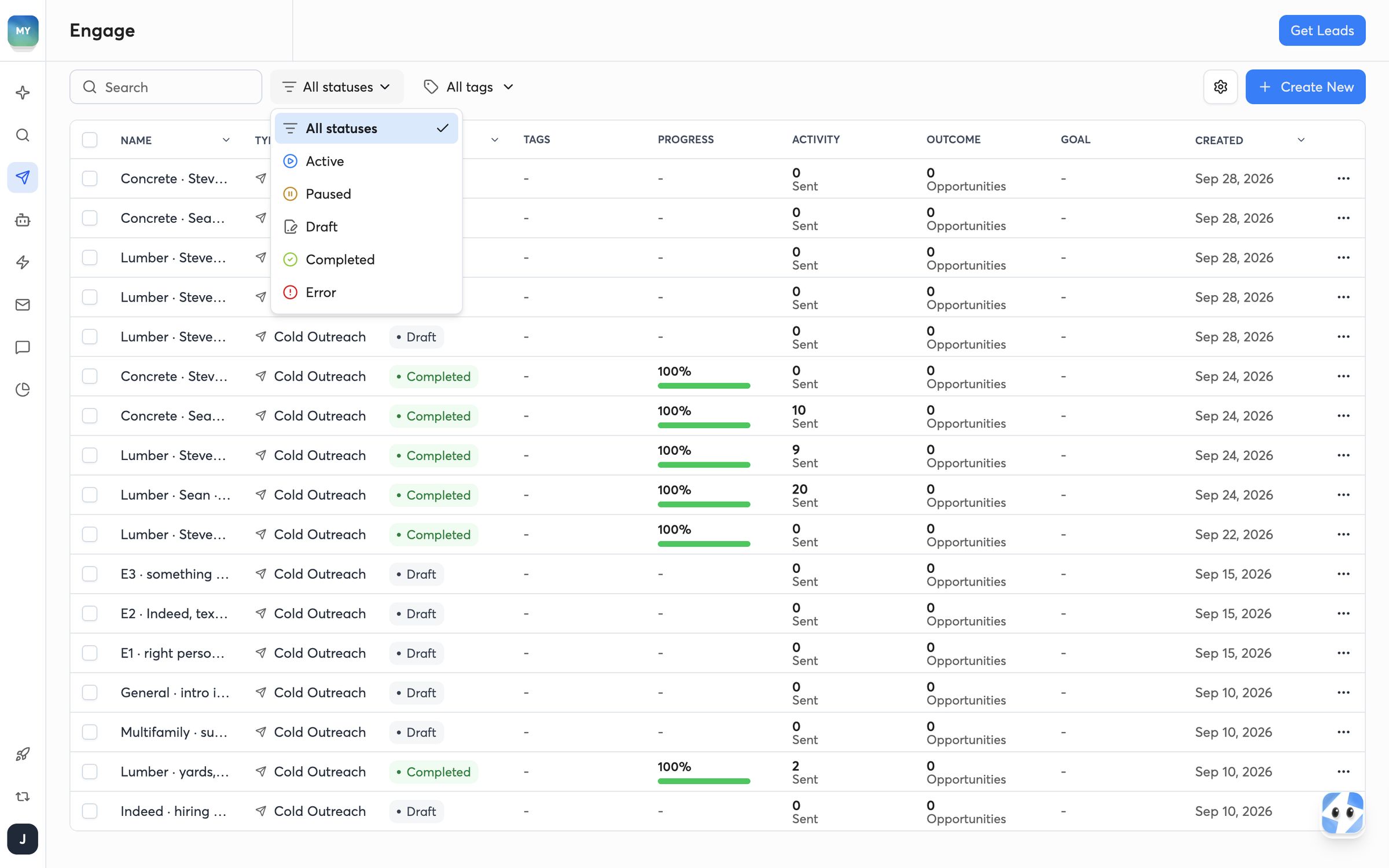
All statuses lets you see one kind of campaign at a time. Pick Active to see only the ones sending.
 Full size

No guides found
Guide 9 of 13 · Cold email process · Instantly
Updated Sep 30, 2026
Once a campaign is sending, three habits keep it healthy: check bounces every day, pause before any change, and duplicate a finished campaign instead of restarting it. This guide shows where each one happens.
The narrated video of this guide is in the library: https://campus.boldestimations.com/video/process-manage-campaigns.mp4
Screens recorded Sep 30, 2026 in Bold Estimation's Zapmail, Instantly and Google accounts. Names, email addresses and phone numbers of real people are replaced with placeholders or blurred, and typed examples are made up. If a screen looks a little different, the tool has updated: find the same label nearby.
Open Engage in Instantly.
All statuses lets you see one kind of campaign at a time. Pick Active to see only the ones sending.
Full sizePress Escape, then open a campaign.
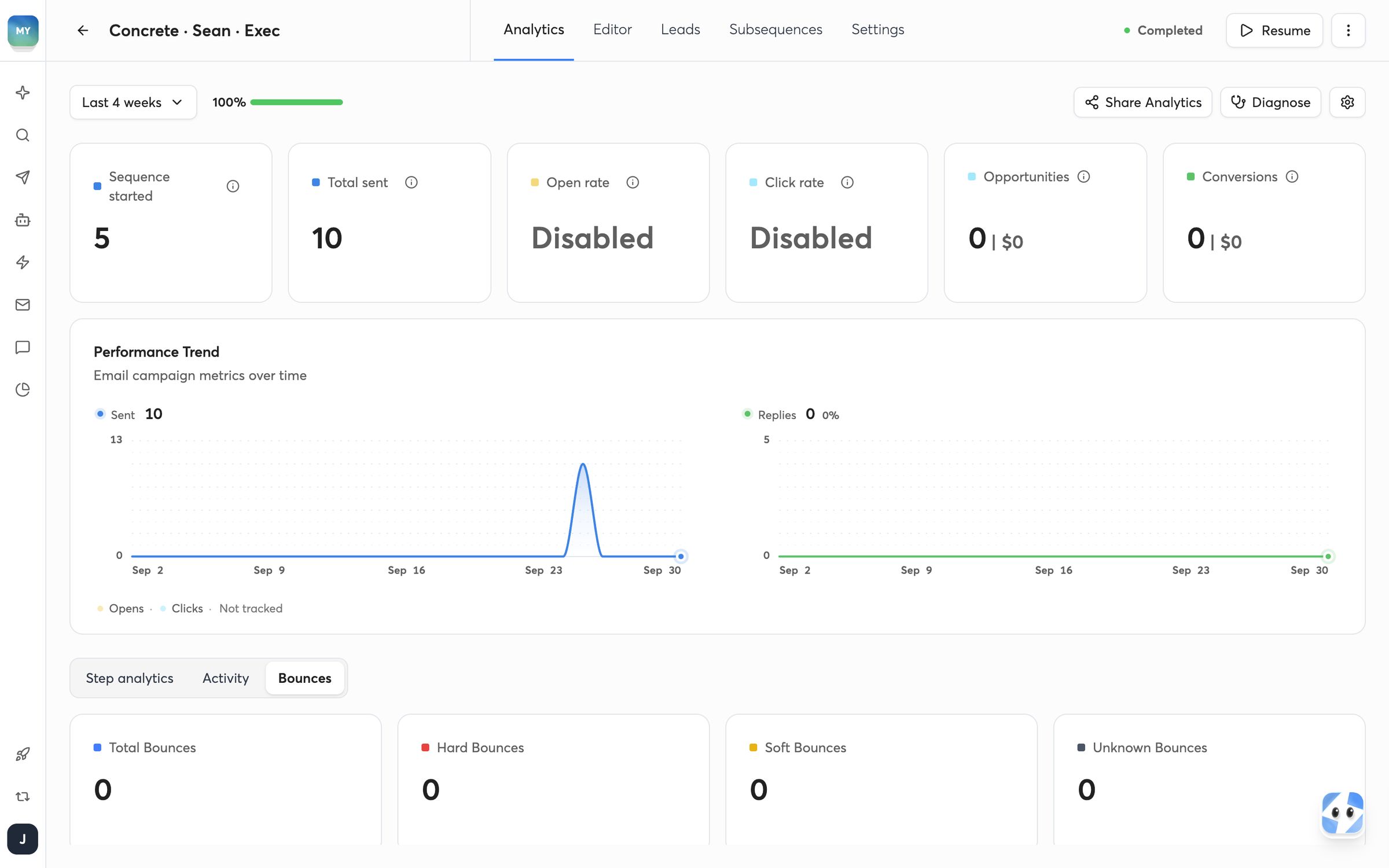
Under the chart, open the Bounces tab.
Check bounces every day. They must stay under two percent of the emails sent, which is two bounces in every hundred.
 Full size
Watch out. Over 2 percent, pause the campaign, set each mailbox's daily limit back to last week's number, and check where the list came from before you resume.
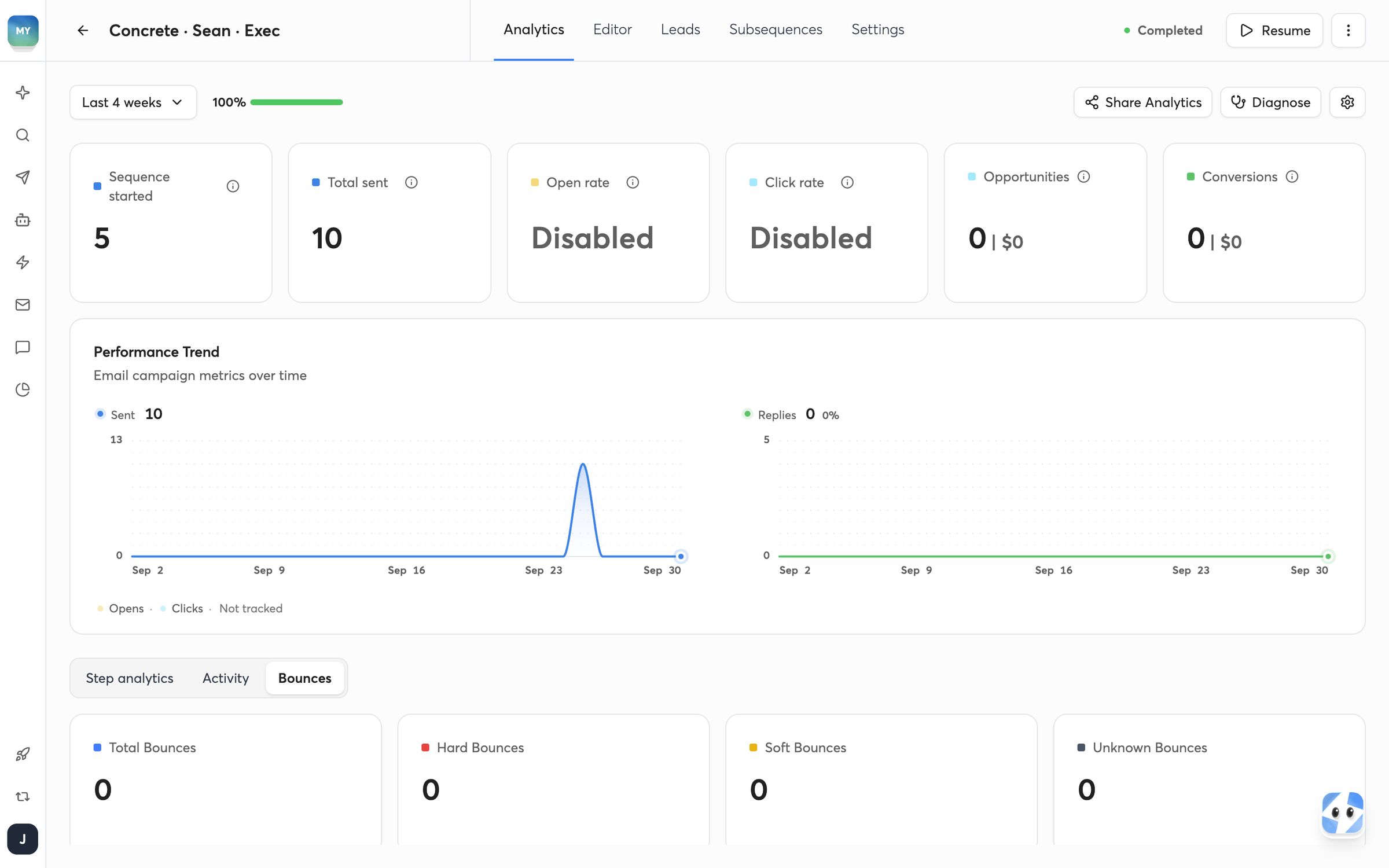
On a campaign that is sending, the top right button says Pause. Pause before you edit the emails. This one has finished, so the same button says Resume.
 Full size
Watch out. Edit the emails only while the campaign is paused. The Editor saves as you type.
Back in Engage, find a campaign marked Completed.
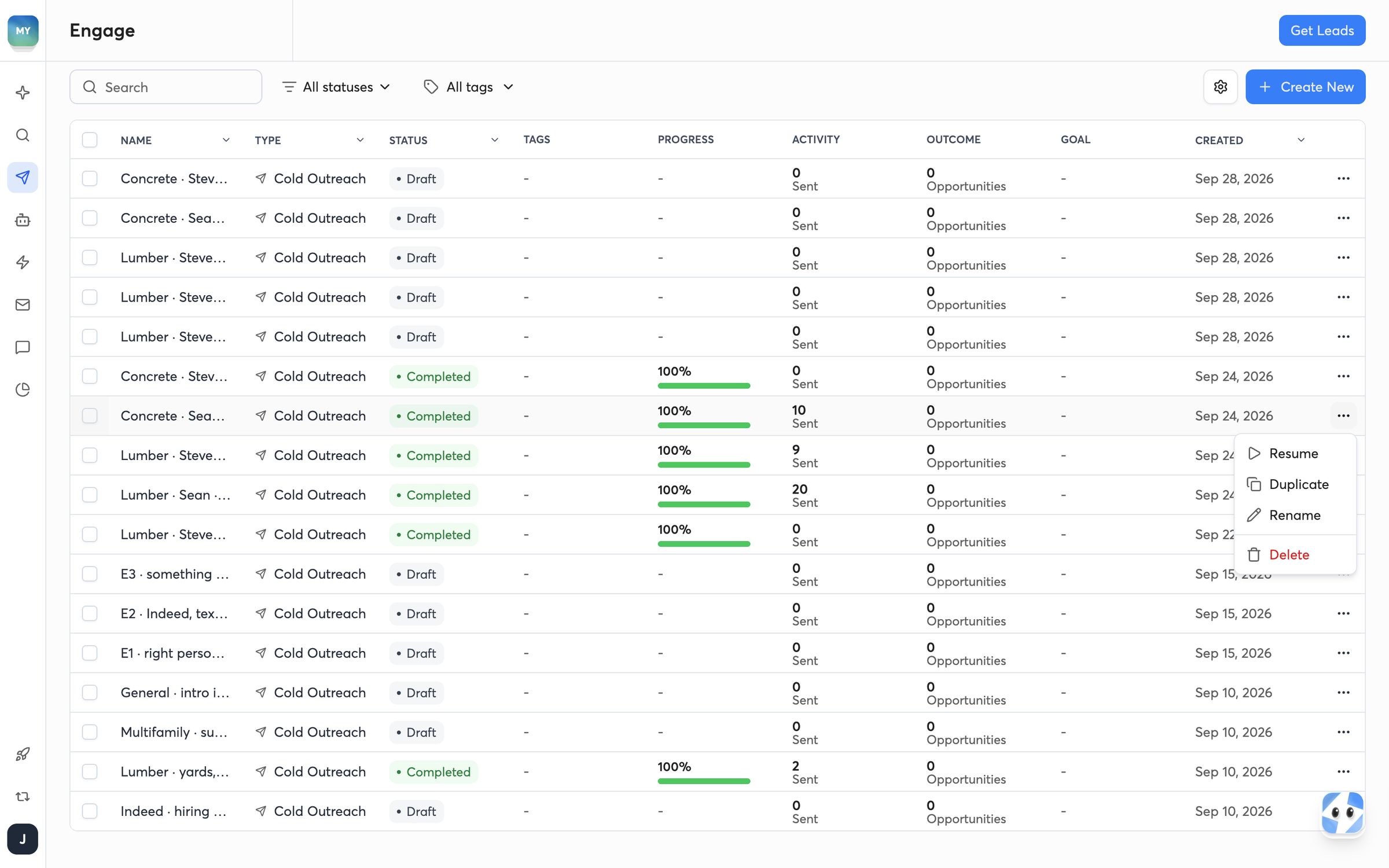
A Completed campaign has emailed everyone on its list. To reach new people with the same emails, open the three dots on its line and pick Duplicate. Give the copy a new list, then launch the copy.
Press Escape to shut the menu.
 Full size
Watch out. Resume and Delete sit in the same menu. Resume on a Completed campaign emails no one new, and Delete removes the campaign and its history. Pick Duplicate.
Not started